Grafana-installation
Plattformen har API-stöd för två Grafana-datakällor:
- JSON-datakällan. Denna gör det möjligt för API-användare att köra sin egen Grafana och visa tidsseriedata från plattformen.
- Infinity-datakällan. Denna gör det möjligt för Grafana att använda hela IoT-plattformens REST-API och även använda Grafanas Alert Manager för larmregler.
Nedan hittar du instruktioner och hjälp med hur du sätter upp den. För att bygga paneler när den väl är ansluten, se Grafana-användarguiden.
Snabböversikt av installationen
Att ansluta Grafana till IoT-plattformen görs i fem steg, i ordning:
- Skapa ett konto på IoT-plattformen - ger dig autentiseringsuppgifterna.
- Skapa en klientapp i IoT-plattformen - spara hemligheten (secret).
- Installera Grafana och konfigurera OAuth mot IoT-plattformen (
custom.ininedan). - Lägg till en datakälla - JSON för snabba tidsserier och kartor, Infinity för hela REST-API:et + larm.
- Börja skapa grafer - bygg din första panel.
Du behöver: ett konto på IoT-plattformen och administratörsrättigheter på Grafana-instansen (för att redigera dess konfiguration och installera plugins). Grafana 9.0.x eller senare.
Versionskompatibilitet
| Komponent | Verifierad version |
|---|---|
| Grafana | 9.0.x eller senare |
simpod-json-datasource (JSON) | 0.6.x |
yesoreyeram-infinity-datasource (Infinity) | 3.6 |
API-användare
Först behöver du se till att du har skapat ett konto på IoT-plattformen. Detta konto används för att skapa autentiseringsuppgifterna som används av Grafana-appen.
Klientapp
För att använda API:et behöver du skapa en klientapp. Det rekommenderas att använda den interaktiva API-dokumentationen för detta. Ändpunkten som ska användas är POST /api/client-apps. Se till att spara hemligheten (secret).
Installera Grafana
För närvarande har vi stöd för version 9.0.x eller senare.
Följ Grafanas installationsinstruktioner. Grafana behöver därefter viss anpassad konfiguration för att ansluta till IoT-plattformen; exemplet nedan är minimum som krävs för att få det igång (se Grafanas dokumentation för konfiguration för hur anpassad konfiguration fungerar).
Exemplet är skrivet för den här servern (staging.yggio.net). Om du integrerar med en annan instans av IoT-plattformen, använd den plattformens dokumentation för korrekta URL:er.
Ändra följande för att matcha din installation:
domain- den publika IP-adressen eller domännamnet där du kör Grafanaroot_url- samma, medhttp/https-schematsignout_redirect_url- uppdatera frågeparameternredirect_uritill din Grafana-inloggnings-URLclient_id- klient-id:t från när du skapade klientappenclient_secret- hemligheten från när du skapade klientappen
#### custom.ini ####

[server]
domain = grafana-test.your-domain.com
root_url = https://grafana-test.your-domain.com

[auth]
signout_redirect_url = https://staging.yggio.net/auth/realms/yggio/protocol/openid-connect/logout?redirect_uri=https%3A%2F%2Fgrafana-test.your-domain.com%2Flogin
token_rotation_interval_minutes = 60

[auth.generic_oauth]
enabled = true
allow_sign_up = true
name = Yggio
client_id = grafana-test-client
client_secret = abcabcabcabc-test-test-test-cbacbacbacba
auth_url = https://staging.yggio.net/auth/realms/yggio/protocol/openid-connect/auth
token_url = https://staging.yggio.net/auth/realms/yggio/protocol/openid-connect/token
api_url = https://staging.yggio.net/auth/realms/yggio/protocol/openid-connect/userinfo
scopes = openid, email, profile, offline_access
Scopet offline_access säkerställer att när du väl har loggat in på Grafana används en refresh-token för att automatiskt förnya din session, så att du inte behöver logga in igen. Detta gör att Grafana känns som en inbyggd plattformsapplikation.
Så fungerar autentiseringen
Grafana loggar in användare mot IoT-plattformens identitetsleverantör (Keycloak) via OpenID
Connect ([auth.generic_oauth]). Varje datakälla har därefter Forward OAuth
Identity aktiverat, så Grafana vidarebefordrar den inloggade användarens token vid varje
förfrågan till IoT-plattformens API. Som resultat ser varje Grafana-användare exakt de
enheter och den data som deras eget konto på IoT-plattformen har åtkomst till - det finns inget delat
tjänstekonto, och åtkomsten styrs av IoT-plattformens behörigheter. Scopet
offline_access håller sessionen vid liv genom att förnya token.
Datakällor
Observera att det krävs administratörsrättigheter för att lägga till och konfigurera plugins i Grafana.
Här hittar du information om hur du installerar plugins i Grafana.
Installation av JSON-datakälla
För närvarande har vi stöd för plugin-versioner 0.6.x av simpod-json-datasource.
Här är instruktioner för hur du installerar JSON-datakälle-pluginet specifikt.
Konfiguration
Lämna allt på standardvärdet förutom de två inställningarna nedan.
- URL:
<yggio rest-api URl>/api/grafana/iotnodes(t.ex.https://staging.yggio.net/api/grafana/iotnodes) - Forward OAuth Identity:
true
Installation av Infinity-datakälla
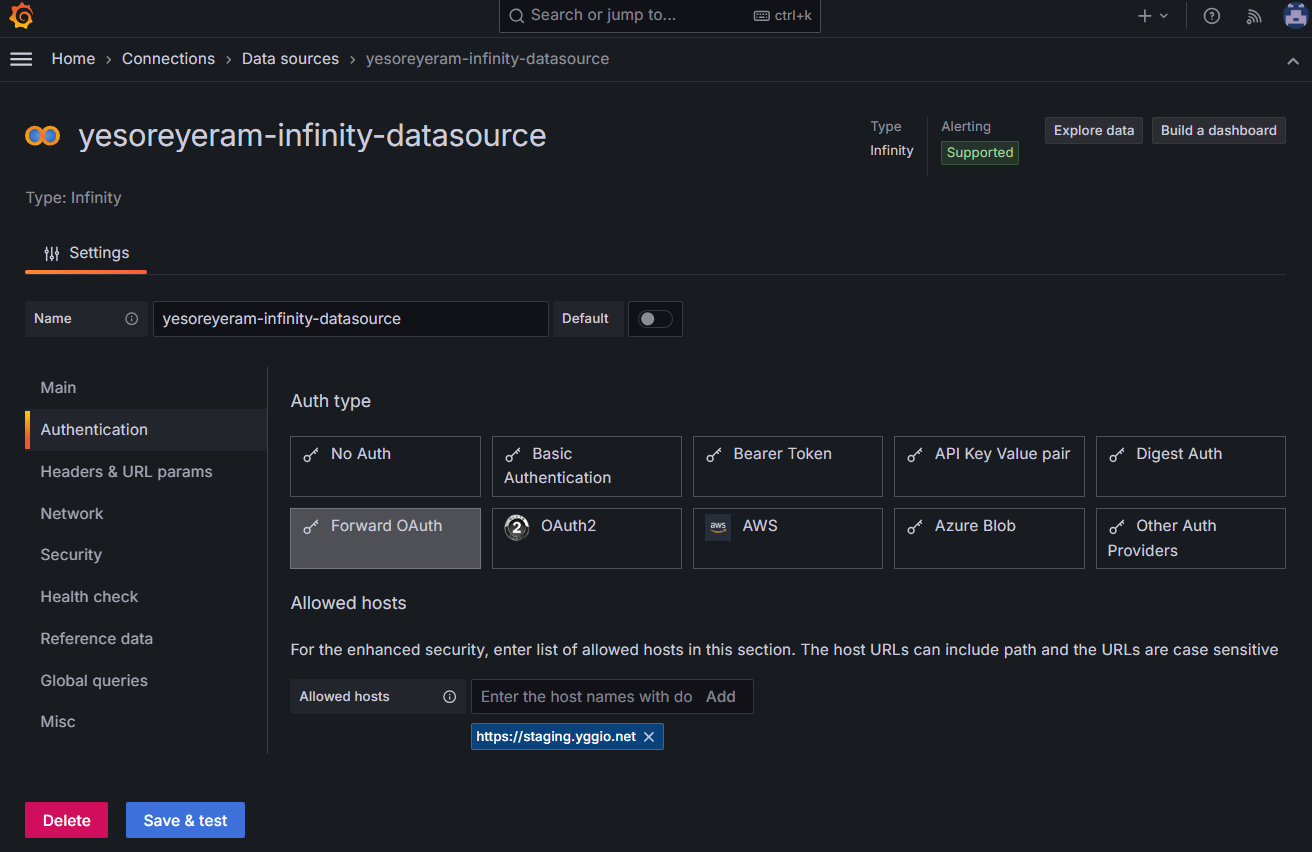
För närvarande har vi stöd för yesoreyeram-infinity-datasource. Stödet är verifierat med version 3.6
Här är dokumentation och instruktioner för hur du installerar Infinity-datakälle-pluginet specifikt.
Konfiguration
Lämna allt på standardvärdet förutom de två inställningarna nedan.
- Forward OAuth Identity:
true - Allowed Host:
<Plattformens URL>(t.ex.https://staging.yggio.net)
Så här ska du konfigurera och använda Infinity-datakällan
Vilken datakälla ska jag använda?
| JSON-datakälla | Infinity-datakälla | |
|---|---|---|
| Syfte | Tidsseriedata för grafer/kartor | Vilken ändpunkt som helst av IoT-plattformens REST-API (tabeller, diagram, kartor) |
| Ändpunkt | /api/grafana/iotnodes (fast) | vilken GET-URL som helst du klistrar in från Swagger |
| Bäst för | Snabba enhetsvärden och GPS-grafer | Full flexibilitet + Grafana-larm |
Hur IoT-plattformens data visas i Grafana
- Ett mått (metric) i JSON-datakällan är en
iotnode(enhet). Att välja jokertecknet*returnerar alla dina aktiva enheter. - Varje enhets fält använder IoT-plattformens kanoniska fältnamn (t.ex.
temperature,relativeHumidity,lnglat,rssi,snr) - samma namn oavsett tillverkare, så en dashboard fungerar för blandad hårdvara. Se datamodellens fälttabell i referensen Translator API. - Plats: en enhet med
lnglatexponerarlat/lngför Geomap-paneler (filtrera bort dem från tidsseriegrafer med en Filter by name-transform). - Tidsserier via Infinity-datakällan kommer från
GET /api/iotnodes/<id>/stats?measurement=<field>&start=<unix ms>&distance=<seconds>.
Larmhantering
Infinity-datakällan fungerar med Grafanas Alert Manager, så du kan definiera larmregler direkt på IoT-plattformens REST-API-data (tröskelvärden, frånvaro av data, etc.) och dirigera notifieringar genom Grafanas kontaktpunkter. JSON-datakällan är avsedd för visualisering snarare än larmhantering.
Felsökning
- Inloggningsloopar / omdirigeringsfel -
redirect_uriisignout_redirect_urloch Grafanasroot_url/domainmåste matcha den faktiska publika URL:en för din Grafana, och klientappens tillåtna omdirigering måste inkludera den. - Paneler visar ingen data men inloggningen fungerar - kontrollera att Forward OAuth Identity är
truepå datakällan; utan det anropar Grafana API:et oautentiserat. - Infinity: förfrågan blockerad - lägg till din IoT-plattformsdomän i datakällans Allowed Hosts.
- En enhet eller ett fält saknas - Grafana ser bara vad ditt konto på IoT-plattformen
har åtkomst till, och en enhet exponerar bara de fält dess översättare skickar; bekräfta
båda i
https://staging.yggio.net/swagger.
Börja skapa grafer!
När stegen ovan är klara bör det vara möjligt att skapa en dashboard och en panel med data från plattformen! Gå till användarguiden för Grafana