Triggers
A trigger decides which events start the rule. Every rule needs at least one, and every trigger has to be connected to something downstream.
A rule may carry several triggers. It runs whenever any one of them fires, and the rest of the graph is walked the same way regardless of which one it was.
| Trigger | Fires when |
|---|---|
| Device updated | One of the selected devices reports a new value |
| Missing expected report | A device stops reporting within its expected interval |
| Sun event | Sunrise or sunset at a fixed location |
| Schedule | A time of day, an interval, or a cron expression |
| Button | Somebody presses a button on a dashboard |
Each block is configured in the Settings panel on the right of the canvas.

Device updated
The everyday trigger. It fires on every report from the devices you name.
- Devices picks what the rule listens to. Select the devices the rule should watch.
- At least one device is required.
The event carries the device document and the values that changed, and both are available to conditions and to variables in the actions.
A chatty device fires this trigger on every uplink. If that is more often than the rule should act, put a condition after it and set the action's execution policy to On enter. The message is then sent when the value crosses the line, not on every report.
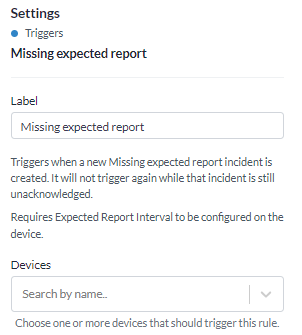
Missing expected report
Fires when a device has not reported inside the interval it is expected to. It is how you learn that a sensor has gone quiet - which, for a battery device on a roof, is the failure you want to hear about.
The interval is not set here. It comes from the device's Expected Report Interval, configured on the device itself or on many devices at once with Select many. A device without one never fires this trigger.
The trigger fires when the incident is raised. It does not fire again while the same incident is still unacknowledged, so a device that has been silent for a week produces one alert, not one per hour. Acknowledging the alarm, or the device reporting again, closes the incident and arms the trigger for the next one.
Sun event
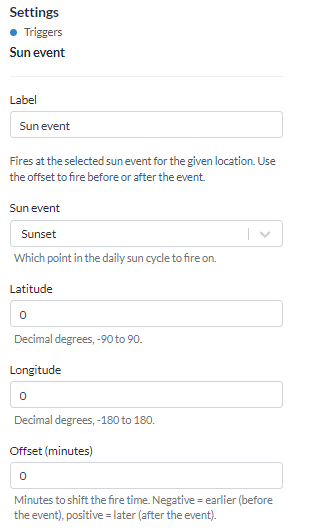
Fires at sunrise or sunset for a fixed location, which is what drives lighting and anything else tied to daylight rather than to a clock.
| Setting | What it does |
|---|---|
| Sun event | Sunrise or sunset |
| Latitude and Longitude | The location the sun times are computed for |
| Offset | Minutes before or after the event, up to 12 hours either way |
The offset is what makes it usable in practice. Street lighting that comes on 30 minutes before sunset and goes off 30 minutes after sunrise is an offset of -30 and +30 on two triggers.
The times move through the year on their own. There is no schedule to maintain.
This trigger carries no device. An action that needs one has to name it explicitly - see the LoRaWAN downlink action.
Schedule
Fires on a clock schedule. Where the sun event trigger follows daylight, this one follows the clock: a nightly report, a weekday check, a reading every fifteen minutes.
| Setting | What it does |
|---|---|
| Schedule | Time of day, Interval, or Cron expression |
| Time zone | The zone the schedule is read in |
| Devices | Optional. The devices to run the rule for, up to 200 |
Next runs shows the coming fire times as you edit, in the rule's time zone alongside your own. It is the quickest way to confirm a schedule means what you think it means.
The three modes
| Mode | What you set |
|---|---|
| Time of day | A time as HH:mm, and the days of the week it applies to |
| Interval | Every N minutes or hours |
| Cron expression | Five fields: minute, hour, day of month, month, day of week |
Interval steps have to divide their unit evenly, so the gap stays even through the day. Minutes allow 1 to 6, 10, 12, 15, 20 and 30; hours allow 1 to 4, 6, 8 and 12. A step of 7 minutes would run at :00, :07 and so on to :56, then jump back to :00 four minutes later, which is why it is not offered.
The time zone
The schedule runs at local time in the zone you pick, and it stays there across a daylight saving change. A rule set for 22:00 fires at 22:00 in summer and in winter.
The one thing to know: an hour-based interval is anchored to local hours, so the gap stretches to two hours in spring and shrinks to four in autumn on the changeover day. Minute intervals are unaffected.
Naming devices
Leave Devices empty and the rule runs once per fire. Name devices and it runs once per device, so conditions, actions and the execution policy state are all kept per device.
Only the device's id is carried into the run. An action can address the device, but a condition cannot read the device's fields - there is no report behind a scheduled fire.
Button
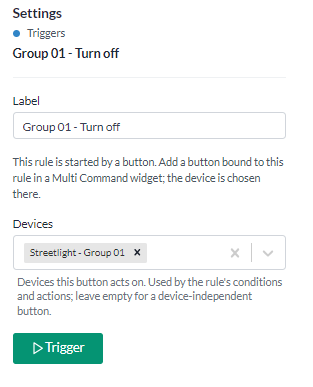
Fires when somebody presses a button you have placed on a dashboard. It is the manual counterpart to the automatic triggers: the rule is the same, but a person decides when it runs.
The button itself lives in the Command buttons widget, and it is bound there to this rule and this trigger node. So the order of work is:
- Build the rule with a Button trigger and save it.
- Add a Command buttons widget to a dashboard.
- Add a button, pick this rule, pick the trigger node, and give the button a label.
Devices on the trigger names the devices the button acts on, and the rule's conditions and actions can then address them. Leave it empty for a button that does not depend on a device - one that calls an external system, say.
A rule can carry several Button triggers, each wired to its own branch. That is how one rule backs a row of buttons: on and off, or one per lighting group, each a separate entry point into the same graph.
Triggers held in older rules
A rule created through the API can carry a webhook trigger. It cannot be added from the palette, but a rule that has one keeps it: opening and saving such a rule in the editor leaves the trigger as it is.