Device groups
A device group is a name for a set of devices - a building, a floor, a customer, an installation round. Once a group exists, it can be acted on in place of the devices in it, so managing a large number of devices does not mean acting on each one.
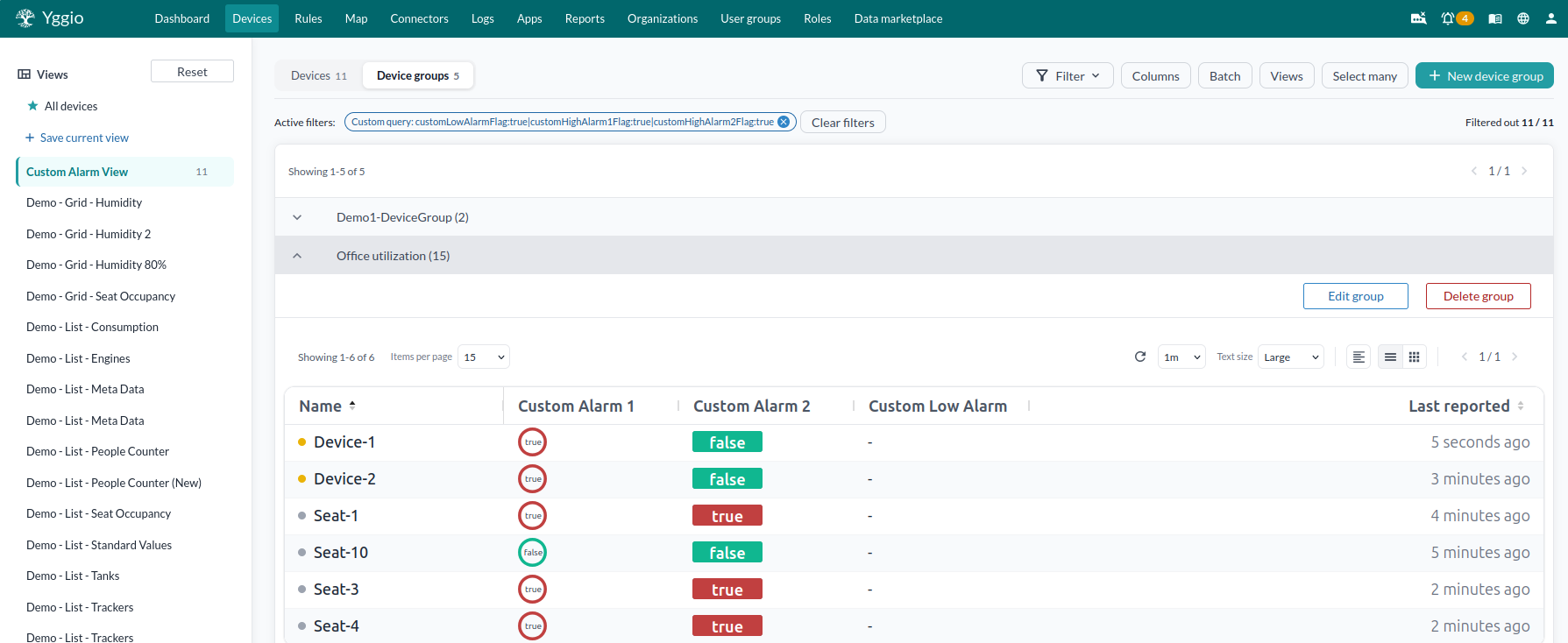
Why group devices
- Bulk management. Select many works on groups as well as on individual devices. Editing fields, changing translators, setting a connector or a report interval and exporting can all be aimed at a whole group at once.
- Access rights. Rights given to a group rather than device by device, through the organisation manager.
- Channels. A channel created on a group sends the data of every device in it to an external service, including devices added later. See Send a group's data out.
- Rules. A rule pointed at a group applies to whatever is in the group, instead of naming devices one by one. See Rule engine.
- Scalability. With access and rules attached to the group, adding a device to that group is the only step. Its rights and its rules come with the membership, and nothing has to be set up again per device.
Note: group support in the organisation manager and the rule engine is still being implemented, so not all of it is available yet. Creating groups, acting on a group from Select many, and group channels work today. Check the release notes for what has landed.
Create a device group
- Press "Devices".
- Change the tab to "Device groups".
- Press "New device group".
- Select a suitable name.
- Press "Create device group".
- You can either select devices to add now or press "Finish" and add more later.
Add devices to a device group
- Press "Select Many" while on the device tab. Mark the devices you want to add to the group. If you want to select ten devices without pressing each one, you can select the first device, then hold the Shift key and select the last device to select all devices in between.
- Then press "Select Action" and choose "Add to Device Group".
- Then search for or select a device group and click "Confirm".
Send a group's data out
- On the "Device groups" tab, press "Select Many" and mark the groups.
- Press "Select Action" and choose "Channels".
- The channels the groups already have are listed at the top, each with "Remove".
- Fill in a name and protocol and press "Create channel". One channel is created per group.
The channel covers every device in the group, now and later, as long as you can read the device. Only you and the group's admins see and can remove the channel. A device's own channel list shows it too, but it can only be removed from the group. Over MQTT, all the group's devices publish to the group's topic; see Device group channels.
Rename or delete a group
- Press "Edit group" to change the name of the group.
- To delete a device group, open the device view for the group and press "Delete group". This won't delete the devices, but it deletes the group's channels. If you want to delete the devices in the group, select them and press "Delete". This will permanently remove the devices in the group.
Finding a group
Once you have more than a handful of groups, two things help on the Device Groups tab:
- Search by group name. The list narrows as you type.
- Choose how many groups to show per page: 10, 25, 50 or 100. The default is 10, lower than the device list's own default of 15.
Both were added in v3.40, alongside a rewrite that made the group view considerably faster to load.