Data Table
Display device data in a customizable table format.
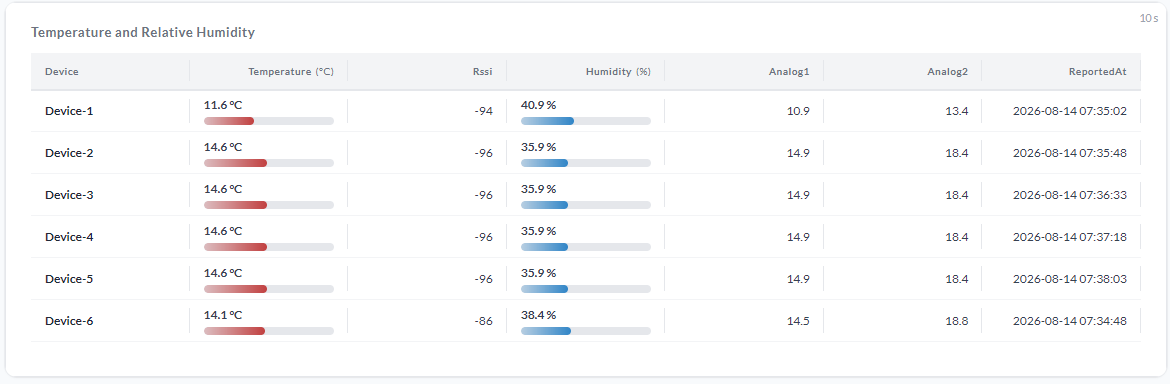
Setup
-
Add the devices using the Select Device field, and the fields using the Select Fields option. Note that individual devices may not have every field available.
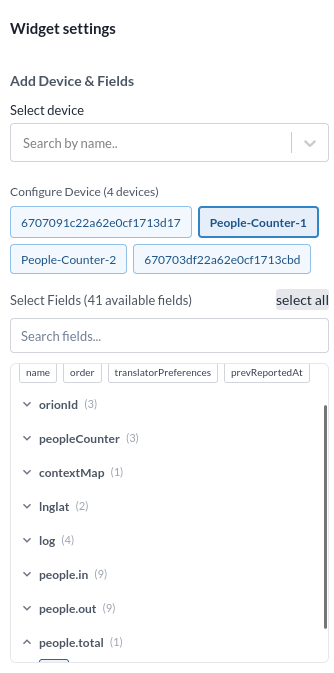
-
Check the Configured Devices section, which lists the devices added to the table. Devices can be removed from here.
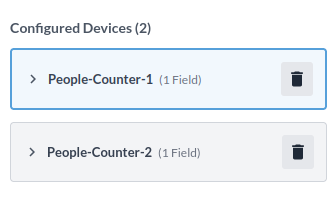
-
Set the appearance of each column in the Column Configurations section. Use the settings icon to open the column options, or the delete button to remove the column.
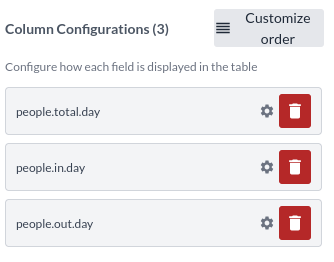
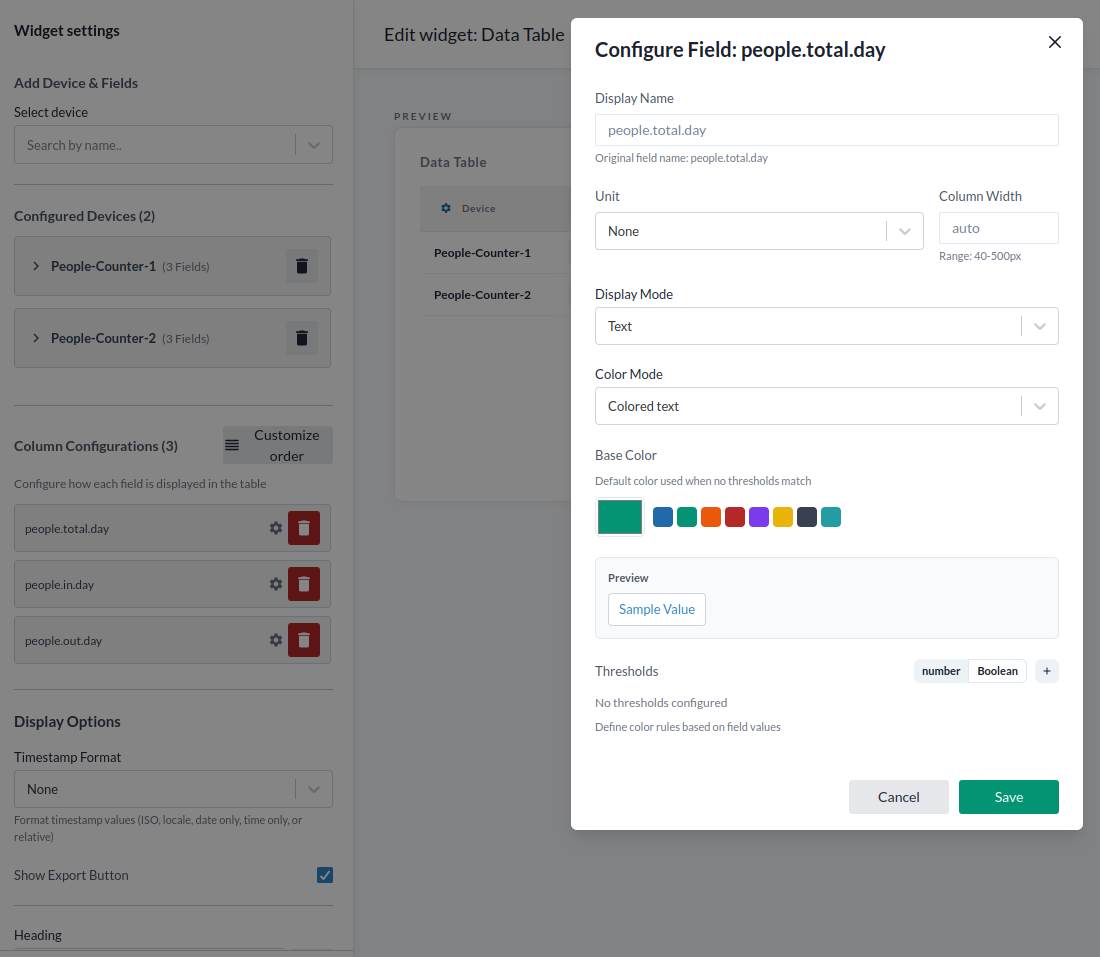
The following options are available in the column settings:
- Display Name sets the column header label.
- Unit sets the unit from a predefined list. If the required unit is not listed, select Custom and enter the value manually.
- Column Width sets a custom column width in pixels.
- Display Mode sets the column display to either text or bar gauge.
If Display Mode is set to text:
- Color Mode is either colored text or background color.
If Display Mode is set to bar gauge:
- Bar Gauge Range sets the minimum and maximum values for the gauge.
- Gauge Style is either basic (single color) or gradient.
- Base Color is the color applied when no threshold conditions are met.
- Thresholds support number and boolean types. Use the
+button to add a threshold of the selected type. For boolean values, the condition is either true or false. For number values, the condition is one of: greater than, greater than or equal, equal to, less than or equal, or less than.
Save the configuration before exiting.
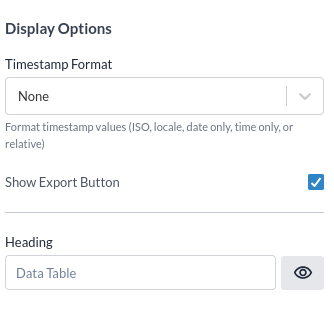
Display options
- Timestamp Format sets the format for timestamp values. Options are ISO, locale, date only, time only, or relative.
- Show Export Button shows or hides the export as CSV button.
- Heading sets an alternative heading in place of the default "Data Table".