Command Button
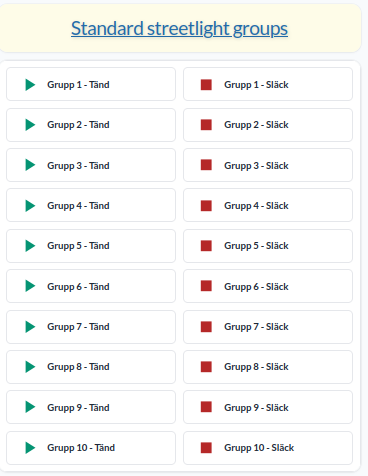
The Command Button widget triggers rules that have a button trigger. Each button can be configured with its own icon, color, and label.
Setup
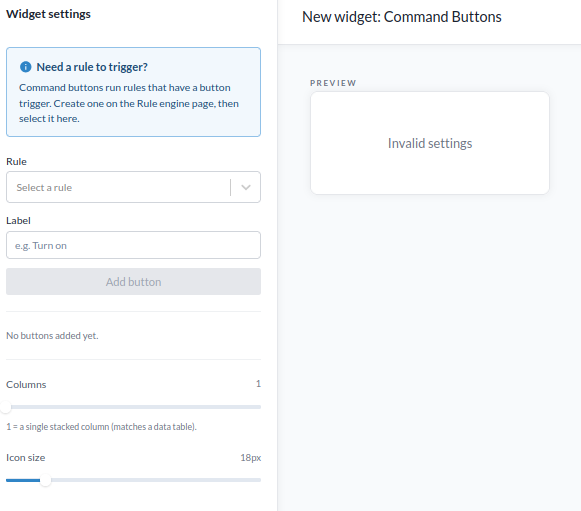
To use this widget, you need to have already created a rule with a button trigger and saved it.
- Select the Rule. Only rules with button triggers are listed.
- Select the Trigger, the button trigger from that rule. This field appears once a rule is selected.
- Enter the Label, the text shown on the button.
- Press Add button to add it to the widget.
- Repeat for all the buttons you want to create.
Each added button is listed with the following controls:
- Arrows change the order of the button.
- Pen edits the button, allowing changes to the label, icon, color, whether only the icon is shown, and the text position.
- Bin removes the button.
- Columns sets the number of columns the buttons are arranged in. A value of 1 displays a single stacked column, matching a data table.
- Icon size sets the size of the button icons, in pixels.
Access
The buttons are greyed out when your role does not allow changing devices, as with the viewer roles, and a note below them explains why. Ask an administrator for a role that can change devices.