WhatsApp Connector
This guide explains how to create and configure a WhatsApp connector in Yggio. Six providers are supported: MessageBird, Plivo, Sinch, TextMagic, Twilio and Vonage.
Overview
- WhatsApp connectors enable sending WhatsApp messages via rule actions.
- You must have an account with one of the supported providers, with WhatsApp messaging enabled on it.
- Required fields are validated in the UI.
WhatsApp is not an open network: whichever provider you use, the sender number has to be registered and approved for WhatsApp Business before it can send. That approval is done with the provider, not in Yggio, and it takes time. The Twilio walkthrough below is included as a worked example; the other providers follow the same shape with their own consoles.
Twilio Setup Requirements
To use WhatsApp with Twilio, you must complete the following steps:
- Sign up for a Twilio account and verify your email and phone number: https://www.twilio.com/try-twilio
- Request WhatsApp access in the Twilio Console (WhatsApp > Senders > Request Access).
- Register your business and WhatsApp-enabled phone number with Twilio.
- Wait for Twilio approval and number activation (this process may take several days).
- Set up a WhatsApp sender (your approved number) in the Twilio Console.
- Get your Account SID and Auth Token from the Twilio Console dashboard.
- Use the approved sender number as the “From” field in your connector configuration.
- (Optional for testing) Use Twilio’s WhatsApp Sandbox to send test messages before your number is fully approved.
For detailed instructions, see the Twilio WhatsApp Quickstart.
Creating a WhatsApp Connector
- Go to the Connectors section in the Control Panel (
/control-panel-v2/connectors). - Click New Connector and select WhatsApp as the type.
- Choose your WhatsApp service provider. The credential fields below change to match it.
- Fill in the required fields for that provider, plus the From sender number.
- Save the connector.
Field Details
Twilio
| Field | Description | Required | Validation |
|---|---|---|---|
| Account SID | Twilio Account SID (starts with AC) | Yes | Must start with AC |
| Auth Token | Twilio Auth Token (secret) | Yes | Non-empty |
| From | Sender number (E.164 format) | Yes | Must be valid E.164 |
MessageBird
| Field | Description | Required | Validation |
|---|---|---|---|
| Access Key | API access key | Yes | Non-empty |
Plivo
| Field | Description | Required | Validation |
|---|---|---|---|
| Auth ID | Plivo auth ID | Yes | Non-empty |
| Auth Token | Plivo auth token | Yes | Non-empty |
| Domain | Your Plivo domain | No | Non-empty when set |
Sinch
| Field | Description | Required | Validation |
|---|---|---|---|
| API Token | Sinch API token | Yes | Non-empty |
| Service Plan ID | Sinch service plan ID | Yes | Non-empty |
TextMagic
| Field | Description | Required | Validation |
|---|---|---|---|
| Username | TextMagic username | Yes | Non-empty |
| API Key | TextMagic API key | Yes | Non-empty |
Vonage
| Field | Description | Required | Validation |
|---|---|---|---|
| API Key | Vonage API key | Yes | Non-empty |
| API Secret | Vonage API secret | Yes | Non-empty |
| Brand Name | Sender identity shown to the recipient | Yes | Non-empty |
Example
- Account SID:
ACXXXXXXXXXXXXXXXXXXXXXXXXXXXXXXXX - Auth Token:
your_auth_token - From:
+46700000000
Notes
- All numbers must be in E.164 format (e.g.,
+1234567890). - Recipients are chosen per rule action, not on the connector.
- You must have a valid account with your chosen provider, with WhatsApp enabled.
Screenshots
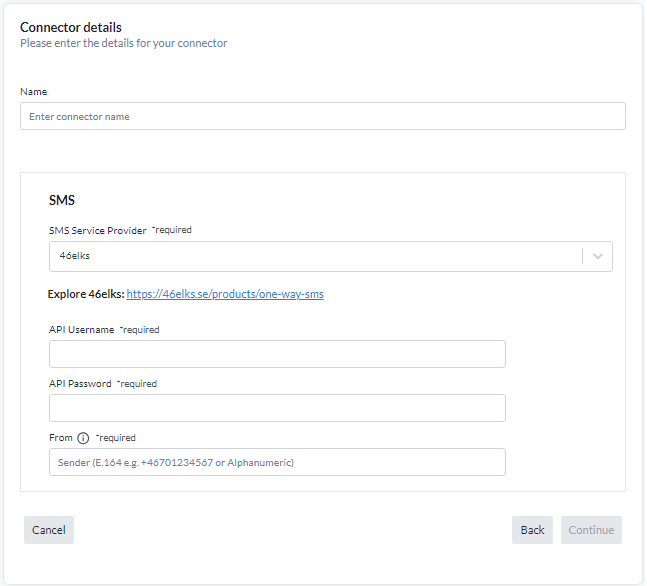
The WhatsApp connector form follows this same shape: pick the provider, fill in its credentials, and set the From sender.
Messaging Statistics
On the saved connector page, you will see a statistics panel showing:
- Total Sent: Number of messages successfully sent.
- Total Fails: Number of failed send attempts.
- Sent This Month: Number of messages sent in the current month.
- Success Rate: Percentage of successful deliveries.
- Attempts: Total number of send attempts (successes + failures).
- Last Sent: Timestamp of the most recent successful send.
- Last Failed: Timestamp of the most recent failed send.
- Last Error: The latest error or warning message, if any, with timestamp.
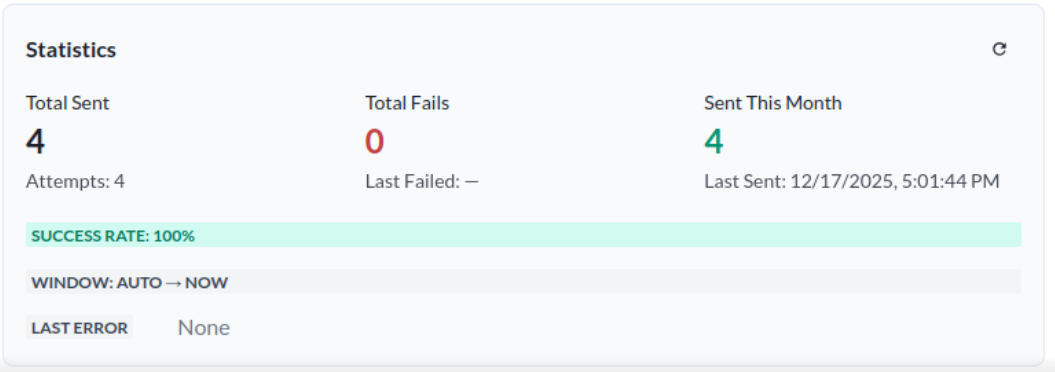
These statistics help you monitor the health and performance of your connector.
Error Logging
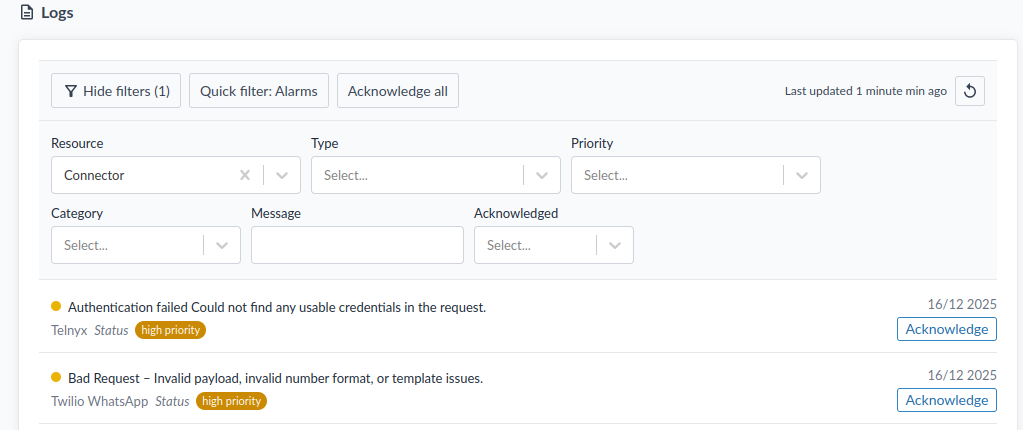
If the connector fails to send a WhatsApp message, an error log will be displayed in Logs under Resource → Connector. You can review these logs to diagnose and resolve issues with your connector configuration or your provider account.