SIA Connect Connector
The SIA Connect connector enables the platform to publish commands and receive device uplinks on its MQTT broker from a SIA Connect IIoT Edge Gateway. The SIA Connect edge gateway supports over 30 industrial protocols, allowing seamless integration with a wide range of PLC and BMS vendors. It features intuitive configuration software and supports up to 500 tags.
Supported features from the platform:
- Receive device uplink updates
- Create devices automatically on the first message from a new tag or object
- Publish commands
Key protocol support:
- BACnet IP
- BACnet MS/TP
- Beckhoff TwinCAT ADS
- Modbus TCP
- Modbus RTU
- Modbus RTU over TCP
- M-Bus
- Wireless M-Bus (wM-Bus)
- OPC-UA client
- OPC-UA server
- Various manufacturer specific protocols.
Bringing a protocol into Yggio. The gateway speaks all of the above. What reaches Yggio is whatever the gateway publishes through a message template, and two templates are supported directly: BACnet and Beckhoff TwinCAT ADS. Data from the other protocols, Modbus included, is carried using one of those two, configured on the gateway side. If you are setting up a protocol for the first time, contact technical support and it will be arranged.
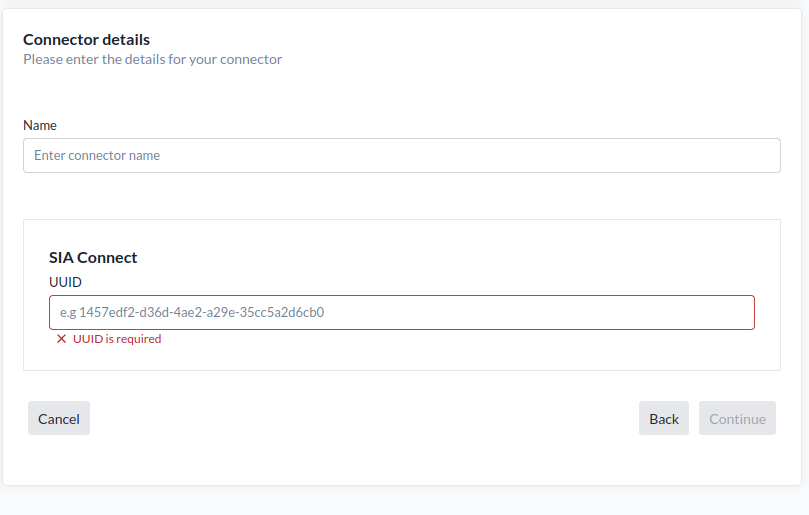
Connector details SIA Connect
Required Information
To set up a connection to a SIA Connect Edge Gateway, provide the gateway UUID:
- a. Edge Gateway UUID: This is the universal unique identifier of the Edge Gateway. It is used in the MQTT topic structure to identify incoming device updates from the gateway.
- b. MQTT Username: The MQTT username, not available in the UI and must be configured by the platform support team.
- c. MQTT Password: The MQTT password, not available in the UI and must be configured by the platform support team.
Optional for Commands (not available in the UI)
- d. SIA Web Interface URL: The URL to the web interface of the SIA Edge Gateway
- e. SIA Username: Your API username.
- f. SIA Password: Your API password.
How Device Data Reaches Yggio
Every message the gateway publishes carries a t field, which tells Yggio how to read it. Two
values are supported, bacnet and adstwincat, matching the two templates above. A third value,
status, is the gateway's own heartbeat: Yggio accepts it and does not store it.
Each tag or object becomes its own device. Yggio identifies a device from the gateway UUID plus what the message carries, so the same tag always lands on the same device, and a new one creates a device automatically:
| Template | Device identified by | Name given on creation |
|---|---|---|
adstwincat | Gateway UUID and the tag name | The tag name |
bacnet | Gateway UUID, object type and object instance | SIAConnect-<UUID> |
With TwinCAT ADS this means every tag you map becomes a separate device in Yggio, so tag naming on the gateway decides what your device list looks like. Name them deliberately.
The description field becomes a field name. In the ADS template, a non-empty d stores the
value under that name as well as under the tag, which is how a reading gets a readable field name
rather than only a tag name.
Note:
unitis accepted in both templates but is not currently stored on the device.
Configure the Edge Gateway
Hardware Configuration
The gateway comes pre-configured to use a static IP 10.20.30.40. By accessing the web interface (through that IP or through direct USB-C connection at 192.168.42.42), the network configuration can be changed.
It is important that the gateway can access the Platform MQTT broker through the configured network, as it has no Internet connection.
Software Configuration
The Gateway must install the MQTT SIA Connector to be able to connect to the platform MQTT broker.
- For each protocol in addition to MQTT you wish to support, the appropriate SIA Connector must be installed in the gateway.
- An MQTT instance for the platform should be created pointing to the platform MQTT broker (
mqtt.staging.yggio.net) and with the MQTT username and password configured on the platform side.
Item Configuration
An Item should be created for each SIA Connector supporting uplinks, with the following options:
- Write only
- Topic: siaconnect/%UUID%
- Input template (unique for every SIA Connector). Example for BACnet:
{
"t": "bacnet",
"ts": "%ITEM.VALUE.TIME%",
"v": {
  "unit": "%ITEM.UNIT%",
  "objectType": "%ITEM.OBJECT_TYPE%",
  "objectInstance": "%ITEM.OBJECT_INSTANCE%",
  "property": "%ITEM.PROPERTY%",
  "dataType": "%ITEM.DATA_TYPE%",
  "value": %VALUE%
  }
}
For Each Uplink Protocol
You need to:
- Make sure the SIA Connector is installed.
- Create an instance configured to your device.
- Create items for each input you desire. Each item needs to include the MQTT topic and the input template.
Note: Items should not require any additional configuration by default.
Beckhoff TwinCAT Setup Example in SIA Edge Gateway
Add the TwinCAT Connector
-
Login to the SIA instance.
-
Go to Connectors from the side menu.
-
Add Beckhoff TwinCAT connector if it is not already added.
-
Click on + Add instance to Beckhoff TwinCAT.
-
Most (if not all) of the information should come from the PLC.
Consult with the people working with the PLC at site.Example configuration (with comments):
- Name:
10004 A EXAMPLE01(site building PLC) - Address:
10.20.30.50(PLC IP address) - Target Ams NetID:
10.20.30.50.1.1
(As of writing, all NetIDs have been<ip>.1.1, but consult with the PLC team) - Target Ads Port:
851(PLC ADS port) - Timeout:
5000
- Name:
Item Configuration
-
On the side menu, go to Instances and select your instance (e.g.,
10004 A EXAMPLE01). -
Click the + New Item button.
-
Consult the tag list to get the information.
Example configuration:
- Name:
F10004_EXAMPLE_BUILDING_A_1501.GT13_AI.rOut - Type:
REAL - Read/Write:
Read only - Variable Name:
F10004_EXAMPLE_BUILDING_A_1501.GT13_AI.rOut - Input template:
- Name:
{
  "t": "adstwincat",
  "v": %VALUE%,
  "tag": "%ITEM_SENDER.NAME%",
  "type": "%ITEM_SENDER.TYPE%",
  "ts": "%VALUE.EPOCH_TIME_MS%",
  "unit": "%ITEM_SENDER.UNIT%",
  "d": "%ITEM_SENDER.DESCRIPTION%"
}