Connectors
Connectors serve as the interface between Yggio and external data sources by managing the required credentials, endpoints, and subscription topics. They enable seamless data flow into the platform, out from the platform or both in and out from the platform.
Connector setup often involves authenticating with remote systems and configuring appropriate permissions, which demands familiarity with the specific external system architecture. Commonly, REST APIs handle initial provisioning, while MQTT streams live sensor data. Exceptions include legacy IoT protocols like BACnet and Modbus.
For troubleshooting, collaboration between the platform support and the remote system's support team is essential.
Retention Policy
Defines how long ingested data is stored within the platform's database. This period can be configured from a minimum of 2 days up to indefinite retention (forever), depending on operational requirements and compliance needs.
Flow Identifier
Defines which Data Flow should be the default choice for new devices created with the connector.
Creating a Connector
To create a new connector:
- Click Connectors in the top navigation bar.
- Select the desired connector type.
- Follow the specific setup instructions for that connector, as configuration varies depending on the data source and protocol.
Managing a Connector
Open a connector from the Connectors list to see its settings, share it, hand it to someone else, edit it where that is supported, or delete it.
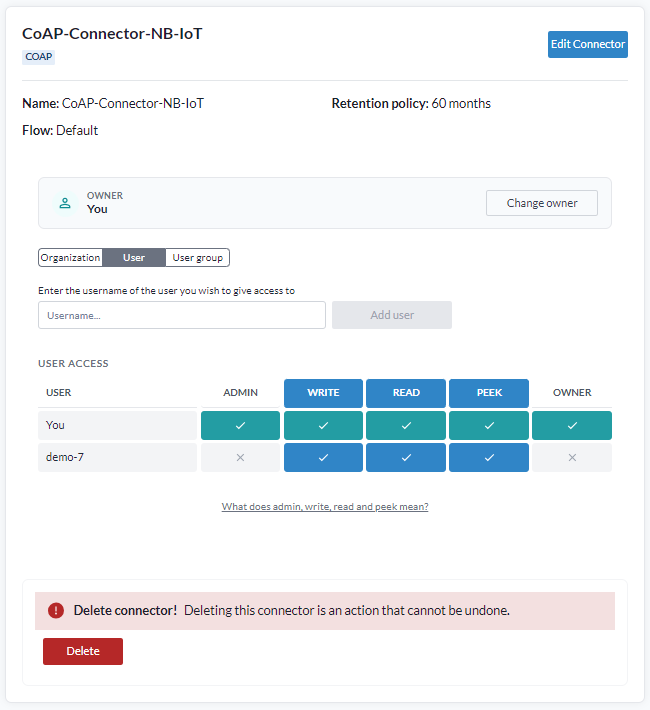
Owner
Every connector has exactly one owner. Change owner hands it to another user, which is what you do when the person who created it leaves, or when a connector should belong to an operations account rather than to an individual.
Sharing access
Access is granted on three tabs: Organization, User and User group. Sharing to a user group or an organization is usually better than to individuals, because access then follows the group instead of needing maintenance person by person.
The levels are the same four used everywhere in Yggio, admin, write, read and peek, and are described under Access rights.
Connectors do not follow the usual access-rights pattern
This is the part that catches people out, so it is worth stating plainly.
To use a connector, meaning to add devices through it, another user needs write, read and peek together. Any one of them on its own is not enough. If a colleague can see a connector but cannot create devices with it, this is almost always the reason.
To edit a connector, admin on the connector is required, and the user must also have an administrator role in Yggio. Both, not either.
Elsewhere in Yggio read is enough to use a resource and write is enough to change it. Connectors are stricter, so grant the three levels together when you share one for others to work with.
Editing
Not every connector type can be edited after creation. The editable ones are Netmore, Actility / Netmore ThingPark and ChirpStack; for any other type, changing a setting means creating a new connector. Edit Connector additionally requires admin rights on the connector itself plus an administrator role, as described above.
Deleting
Deleting a connector cannot be undone. Note that on the network-server connectors, deleting a device can also decommission it on the remote server unless you opt out at the confirmation dialog; see the individual connector pages.
Available Connectors
LoRaWAN
- Actility / Netmore ThingPark - For the LoRaWAN server ThingPark from Actility.
- ChirpStack V3 - For the open-source LoRaWAN server ChirpStack v3.
- ChirpStack V4 - For the open-source LoRaWAN server ChirpStack v4.
- Loriot - For the LoRaWAN server Loriot. This integration is receive-only.
- Helium - For the LoRaWAN server Helium. This integration is receive-only.
- Netmore - For the LoRaWAN server Netmore.
- TTN – (The Things Network) - For the LoRaWAN server TTN (The Things Network).
Generic (NB-IoT / Cat-M / WiFi / BLE / Ethernet / etc.)
- CoAP - Connector to receive data from CoAP devices.
- UDP - Connector to receive data from UDP devices.
- MQTT - Connector for publishing arbitrary data on the platform’s MQTT broker or at an external broker.
- HTTP - Existing global connector for sending HTTP POST updates. Available through "Channels" on all devices in the device list.
- BACnet IP - Enables the platform to communicate with a BACnet server (requires direct network access). Contact support to enable.
- Modbus TCP - Enables the platform to communicate with Modbus devices (requires direct network access). Contact support to enable.
Hubs (Z-Wave, Zigbee, Matter)
- Hubitat - For connecting a Hubitat hub. Everything the hub speaks becomes ordinary Yggio devices, and the link is two-way, so Yggio can control them as well as read them.
- Z-Wave - Supported through the Hubitat connector.
- Zigbee - Supported through the Hubitat connector.
- Matter and Thread - Supported through the Hubitat connector.
- Lutron, LAN and cloud devices - Anything else Hubitat supports through its own or community drivers, again through the Hubitat connector.
Messaging
These carry messages out of Yggio rather than data in. A rule action decides the recipients, so one connector serves the whole account.
- Email - Sends email through any SMTP-compatible provider.
- SMS - Sends SMS through 46elks, Telnyx or Twilio.
- WhatsApp - Sends WhatsApp messages through MessageBird, Plivo, Sinch, TextMagic, Twilio or Vonage.
Road and Traffic
- Road Maintenance - Reads road works announcements from a mailbox with an LLM and turns them into roadblocks, so navigation routes emergency vehicles around closures. See Road Obstructions.
- RSMP Traffic Light Controllers - For supervising traffic light controllers over RSMP, the open roadside-equipment protocol from the Nordic road authorities. Signal groups and detector logics become individual devices. See RSMP (Traffic Management).
Manufacturer- or Service-Specific
- BLE Dusoniot - For connecting to BLE gateways from Dusoniot.
- Celsiview - For receiving data from Celsiview devices via their portal (typically NB-IoT devices).
- Delta Controls – BACnet - For integration with Delta Controls BMS via EnteliWeb REST API.
- Elvaco CME - For receiving multi-sensor data via HTTP from Elvaco CME devices, using Elvaco spec
3108. - Klimator RSI - For receiving weather data from Klimator’s road weather stations via their RSI portal.
- SIA Connect - For connecting to edge gateways from SIA Connect. Enables integration with various BMS platforms (e.g. Siemens, Schneider, Beckhoff).
- Siemens Desigo CC - For providing sensor data to Siemens Desigo CC via its REST API.
- Open Weather Map - For receiving weather and forecast data from Open Weather Map. Create weather devices with specific latitude and longitude to retrieve data.
AI
- AI - Connects AI chatbots (LLM) to the platform, so they can answer questions about Yggio from the documentation.
Notes
Some connectors are only available when creating a device via the "New Device" option in the device list. These are legacy connectors and will be migrated to the Connector UI over time.
Other connectors are only accessible via the API and are undocumented and will get added to the UI in future platform updates.
Connectors are essential for adding and managing devices in Yggio. If your desired connector is not available in the UI please contact your support representative.