Email Connector
This guide explains how to create and configure an Email connector in Yggio. Any SMTP-compatible provider can be used.
Overview
- Email connectors enable sending emails via rule actions, which decide the recipients.
- You must have access to an SMTP server (e.g., your company mail server, Gmail, etc.).
- Required fields are validated in the UI.
Creating an Email Connector
- Go to the Connectors section in the Control Panel (
/control-panel-v2/connectors). - Click New Connector and select Email as the type.
- Fill in the SMTP server details and the sender address (see below).
- Save the connector.
Field Details
| Field | Description | Required | Validation |
|---|---|---|---|
| SMTP Host | SMTP server hostname (e.g., smtp.example.com) | Yes | Non-empty |
| SMTP Port | SMTP server port (e.g., 465, 587) | Yes | Must be a number |
| SMTP Username | SMTP account username | Yes | Non-empty |
| SMTP Password | SMTP account password | Yes | Non-empty |
| Use SSL/TLS | Use SSL/TLS for SMTP connection | Yes | true/false |
| From (Sender Email) | Email address to send from | Yes | Must be valid email |
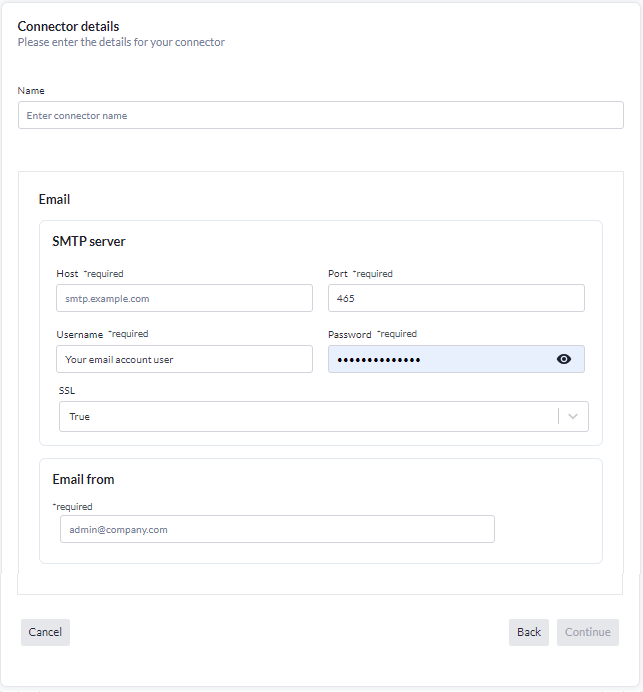
Recipients are not set on the connector. A connector holds the SMTP settings and the sender address only. Who receives a message is decided where the message is sent from: the rule action, and the organisation manager. One connector therefore serves the whole account, rather than needing one per recipient.
Example
- SMTP Host:
smtp.example.com - SMTP Port:
465 - SMTP Username:
admin@example.com - SMTP Password:
your_password - Use SSL/TLS:
true - From:
admin@example.com
Notes
- Recipients are chosen per rule action, not on the connector.
- All email addresses must be valid.
- The connector will use the provided SMTP credentials to send emails.
Messaging Statistics
On the saved connector page, you will see a statistics panel showing:
- Total Sent: Number of messages successfully sent.
- Total Fails: Number of failed send attempts.
- Sent This Month: Number of messages sent in the current month.
- Success Rate: Percentage of successful deliveries.
- Attempts: Total number of send attempts (successes + failures).
- Last Sent: Timestamp of the most recent successful send.
- Last Failed: Timestamp of the most recent failed send.
- Last Error: The latest error or warning message, if any, with timestamp.
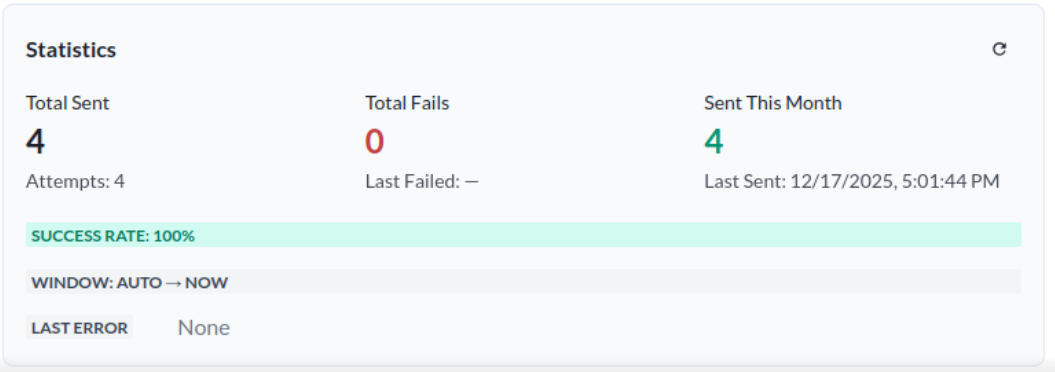
These statistics help you monitor the health and performance of your connector.
Error Logging
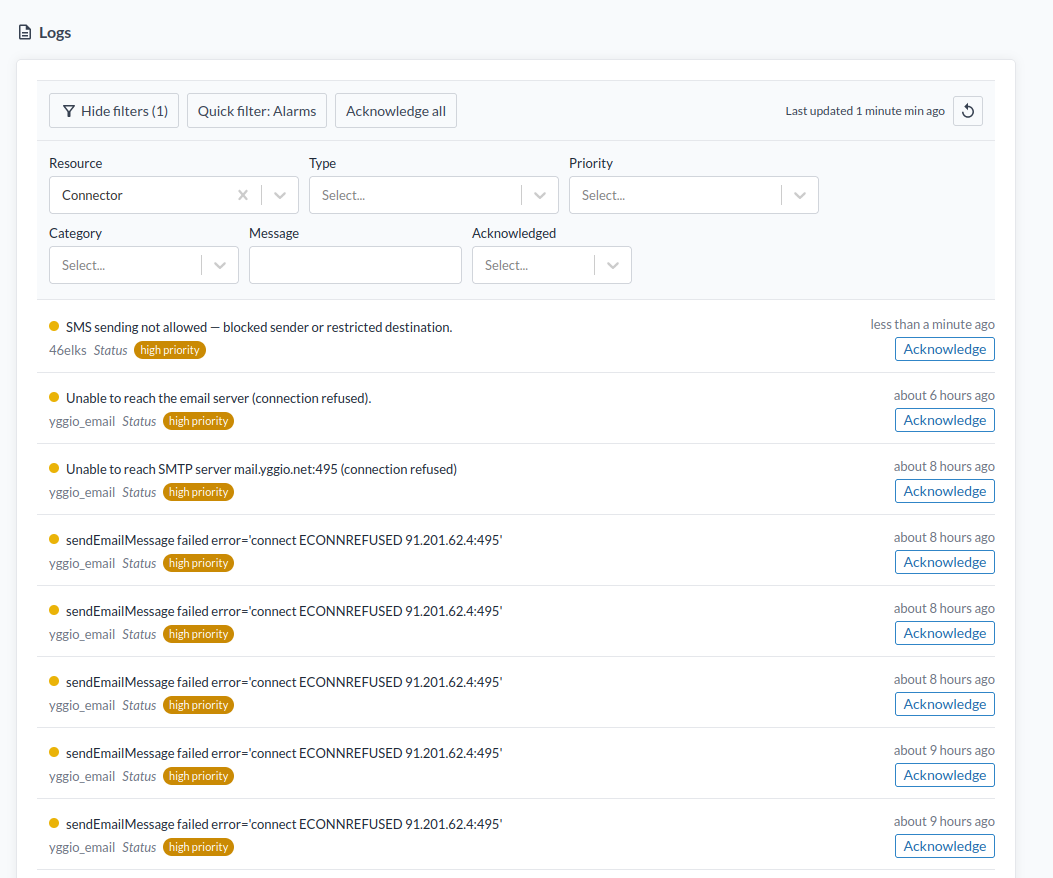
If the connector fails to send an email, an error log will be displayed in Logs under Resource → Connector. You can review these logs to diagnose and resolve issues with your connector configuration or SMTP server.