App Upgrade
App Upgrade installs a new application on your Sensative VSM LoRa trackers over the air.
The application - the app - is what decides what a tracker measures, how often it reports
and what it puts in its reports. It is a set of up to 64 small rules that the tracker runs, and
it is delivered as a .vso file from your Sensative application build. This is not device
firmware: the radio and the LoRa handling are untouched by an upgrade, and no firmware image is
involved. Only the rules change.
Previously the only way to change the app was to hold an NFC phone against each tracker. App Upgrade does it remotely, over the same LoRa network the devices already use, to as many devices as you like at once.
Before you start
App Upgrade is not switched on for everyone. If you do not see App Upgrade in the main menu,
ask your Yggio administrator to enable App Upgrade access on your user account. It is a per-user
setting, so it has to be enabled for each person who needs it, and you will need to sign out and
sign back in before it appears. Administrators grant it by setting the app_upgrade_active user
attribute to true in Keycloak, the login service Yggio uses.
You also need:
- Write access to every device you want to upgrade. Devices you can only view are rejected.
- Devices that are Sensative VSM LoRa trackers. Other device models do not run a rule application.
- Devices connected through a ChirpStack network server. Yggio cannot run an upgrade through Netmore, Actility Thingpark or The Things Network, so devices on those are skipped with a note on the row.
- A
.vsofile of at most 64 kB from your application build.
What an upgrade does to a device
An upgrade is not a patch. Yggio first puts the tracker into programming mode, which empties its rule memory, then sends the rules one at a time, and finally tells the tracker to save them and restart. Two consequences are worth knowing before you start:
- A device whose upgrade does not finish stops reporting. Its rule memory is empty, so it has no rules to run and sends no measurements. It is still on the network, still receives downlinks and can be upgraded again - it is not lost. Start a new upgrade for it and it comes back with the app that upgrade installs. Until then it reports nothing but its rule-memory checksum.
- Starting an upgrade discards the device's queued LoRa downlinks. The transfer needs an empty downlink queue, so Yggio flushes it first. Anything else waiting in that queue - a report-interval change, a configuration command - is thrown away and has to be sent again after the upgrade. Sequence your configuration changes after the upgrade, not before it.
Because of this, install a new app on one tracker first, wait until it reports measurements again, and only then upgrade the fleet.
Devices that already report the checksum of the app you selected are skipped by default, so re-running an upgrade over a large fleet only touches the devices that need it. Tick Reprogram devices that already run this app if you want them erased and reloaded anyway.
Uploading an app
Apps live in a library on the App upgrade page. Upload one before you start an upgrade with it.
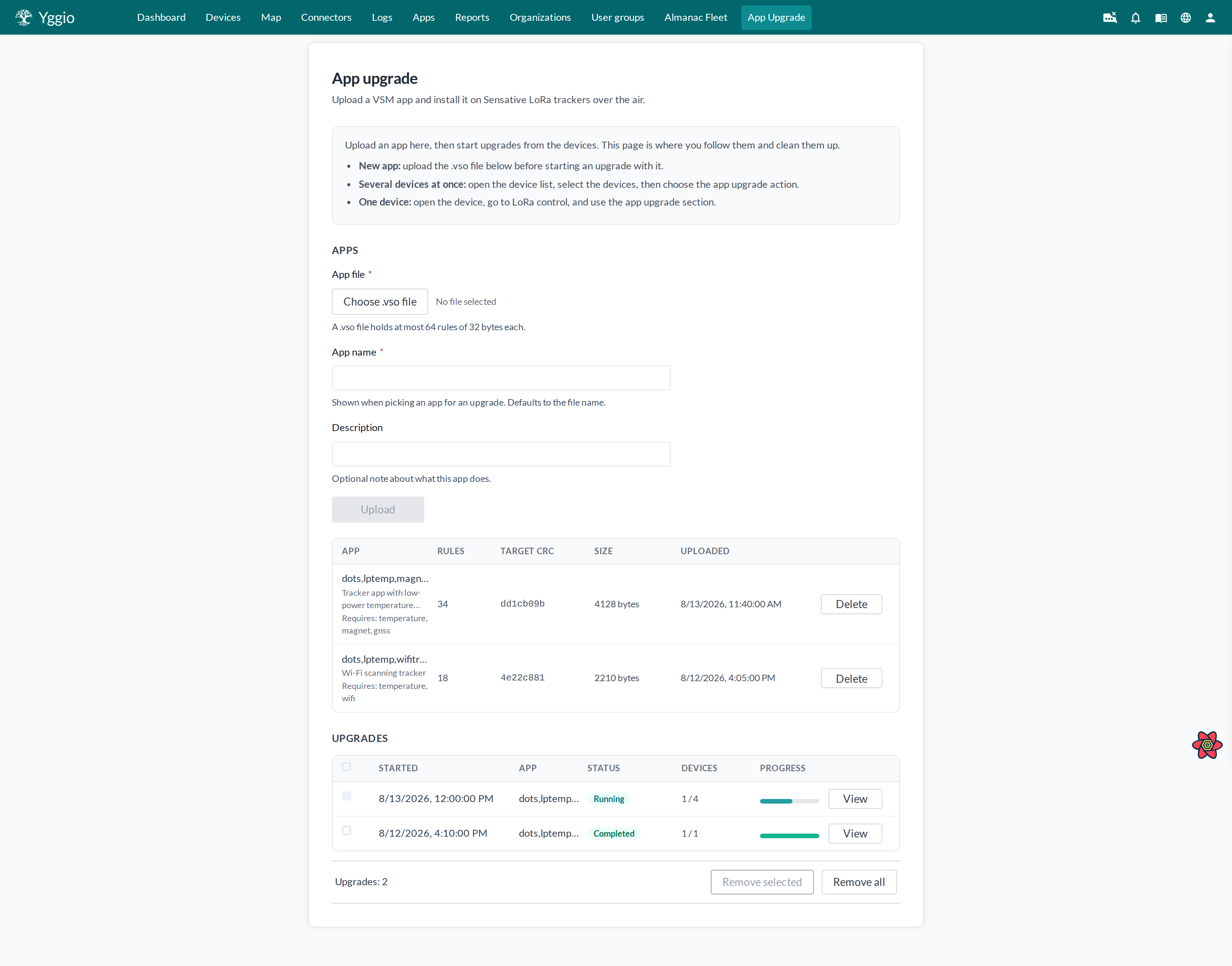
- Open App Upgrade from the main menu.
- In the Apps section, press Choose .vso file and pick the file.
- Optionally change the App name - it defaults to the file name - and add a Description so your colleagues can tell your apps apart.
- Press Upload. Yggio reads the file and tells you how many rules it holds and what its target checksum is.
The library lists, for each app:
| Column | Meaning |
|---|---|
| App | The name you gave it, its description, and which sensors its rules need |
| Rules | How many rules the app holds, out of a maximum of 64 |
| Target CRC | The checksum a tracker reports once the app is installed. This is the app's identity - it is how Yggio knows an upgrade succeeded, and how it recognises a device that is already up to date |
| Size | The size of the uploaded file |
| Uploaded | When it was uploaded |
Yggio checks the file when you upload it, so a file that would leave a tracker in a bad state is
refused rather than sent. A file is rejected when it is not a .vso file, is larger than 64 kB,
contains no rules at all, contains a compiler error line, has a rule that is empty or longer than
32 bytes, or has rule numbers that are out of range, repeated, or not a complete run starting at
rule 0. The message names the offending line so you can fix the file and upload it again.
Device firmware
Older Dots firmware locks up if a tracker receives the same downlink twice, and a locked-up tracker needs physical attention. Newer firmware fixes this. The Device firmware setting tells Yggio which of the two it is talking to, and it is set per upgrade.
| Setting | What Yggio does |
|---|---|
| Older firmware (safe for all) | Never sends the same downlink twice within one upgrade. If a tracker goes quiet, Yggio asks it for its checksum once and then waits; if a tracker restarts in the middle of a transfer, Yggio gives up on it rather than resending rules it already had. Starting a new upgrade begins again from the programming command, which is what makes a retry possible at all. |
| Firmware with the duplicate-downlink fix | May ask a quiet tracker again, and may pick a restarted tracker up where it left off. Fewer upgrades need a second attempt. |
Older firmware is the default, and it is the safe choice. Picking the newer setting for a tracker that has not been updated can lock it up. Picking the older setting for an updated tracker costs nothing but the occasional extra upgrade.
Either way, a rule that the tracker's own checksum proves never arrived is always sent again - that is the tracker receiving it for the first time, not a repeat.
How long an upgrade takes
Rules are sent as LoRa downlinks, and how fast they can be sent is set by the device's data rate (DR), which reflects how good its radio link is. The figures below are for a full 64-rule app:
| Data rate | Transfer time for 64 rules |
|---|---|
| DR0 | About 3 hours |
| DR1 | About 1 hour 45 minutes |
| DR2 | About 50 minutes |
| DR3 | About 25 minutes |
| DR4 | About 15 minutes |
| DR5 | About 10 minutes |
These are floors. An app with half as many rules takes roughly half as long, and on top of the transfer itself comes the wait until each tracker next reports: a tracker only receives downlinks when it talks, so a device reporting once an hour takes up to an hour just to enter programming mode. Wait for programming mode on the start form is how long Yggio waits for that; allow at least two report intervals.
Devices at DR0 - DR2 are far from a gateway. They will get there eventually, but the transfer is slow. Devices at a time limits how many devices are programmed simultaneously, because devices sharing a gateway compete for the same air; a lower number is slower but more reliable.
Upgrades continue in the background. You can close the page, or your laptop, and come back later.
Starting an upgrade
Upgrades are started from your devices, not from the App upgrade page. There are two ways.
Several devices at once
- Open Devices from the main menu.
- Tick the devices you want to upgrade.
- In the bar that appears at the bottom, choose App upgrade from Select action.
- Choose the App to install and the LNS connector the devices belong to. Leave the rest
alone unless you have a reason to change it:
- Reprogram devices that already run this app - off by default, so up-to-date devices are skipped instead of being erased and reloaded.
- Device firmware - leave this on Older firmware (safe for all) unless you know the trackers have been updated. See below.
- Devices at a time - how many devices are programmed simultaneously.
- Wait for programming mode (minutes) - how long a device may take to pick up the command that enters programming mode.
- Press Start upgrade.
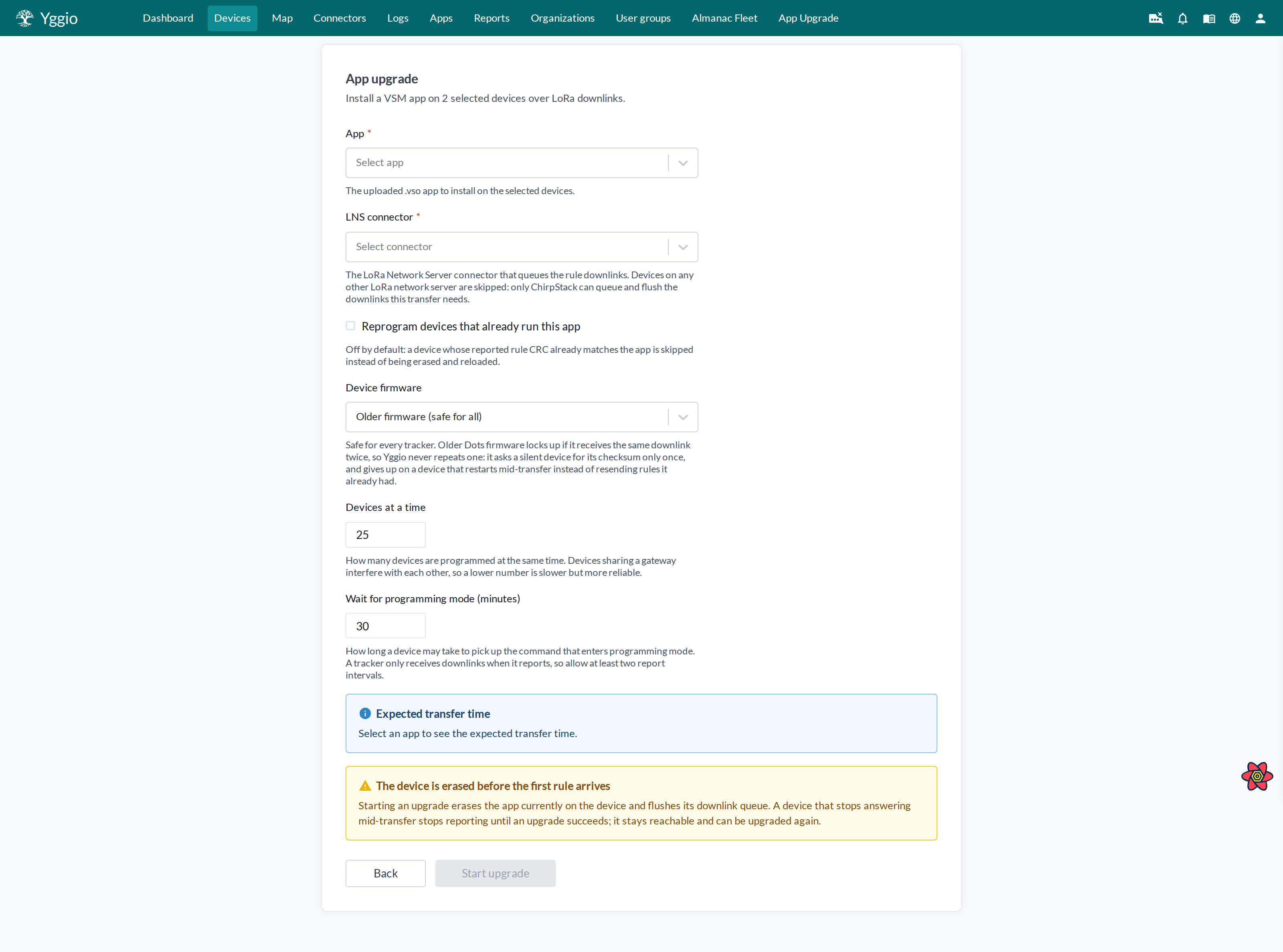
One upgrade covers at most 200 devices. Select fewer and run several upgrades if you have more.
One device
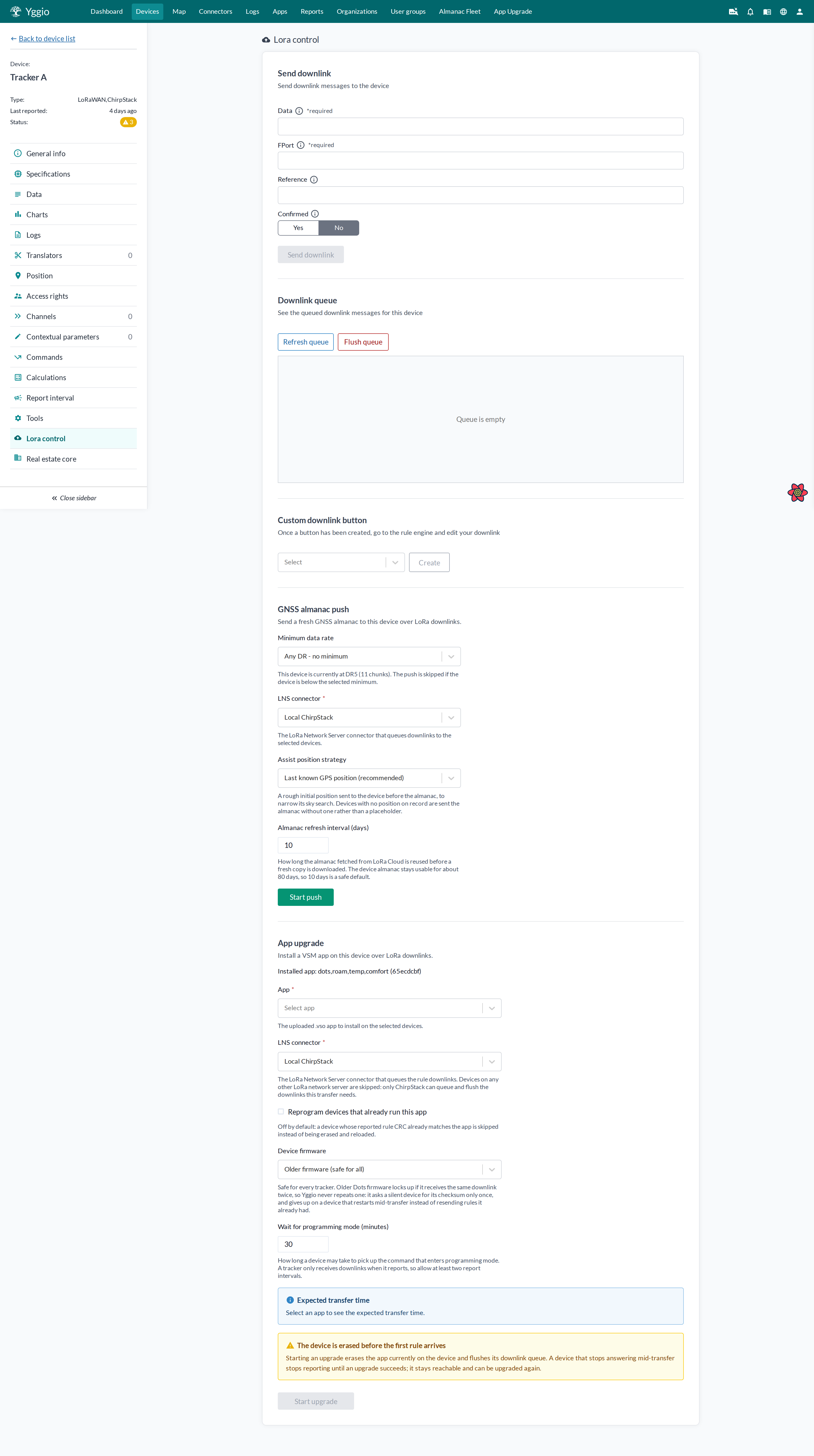
Open the device, go to LoRa control, and use the App upgrade section there. It shows which app the device reports running now, and the expected transfer time at that device's own data rate.
Watching progress
The App upgrade page lists your upgrades under Upgrades, newest first, with the status of each one and how many of its devices are done. Press View on a row to open it.
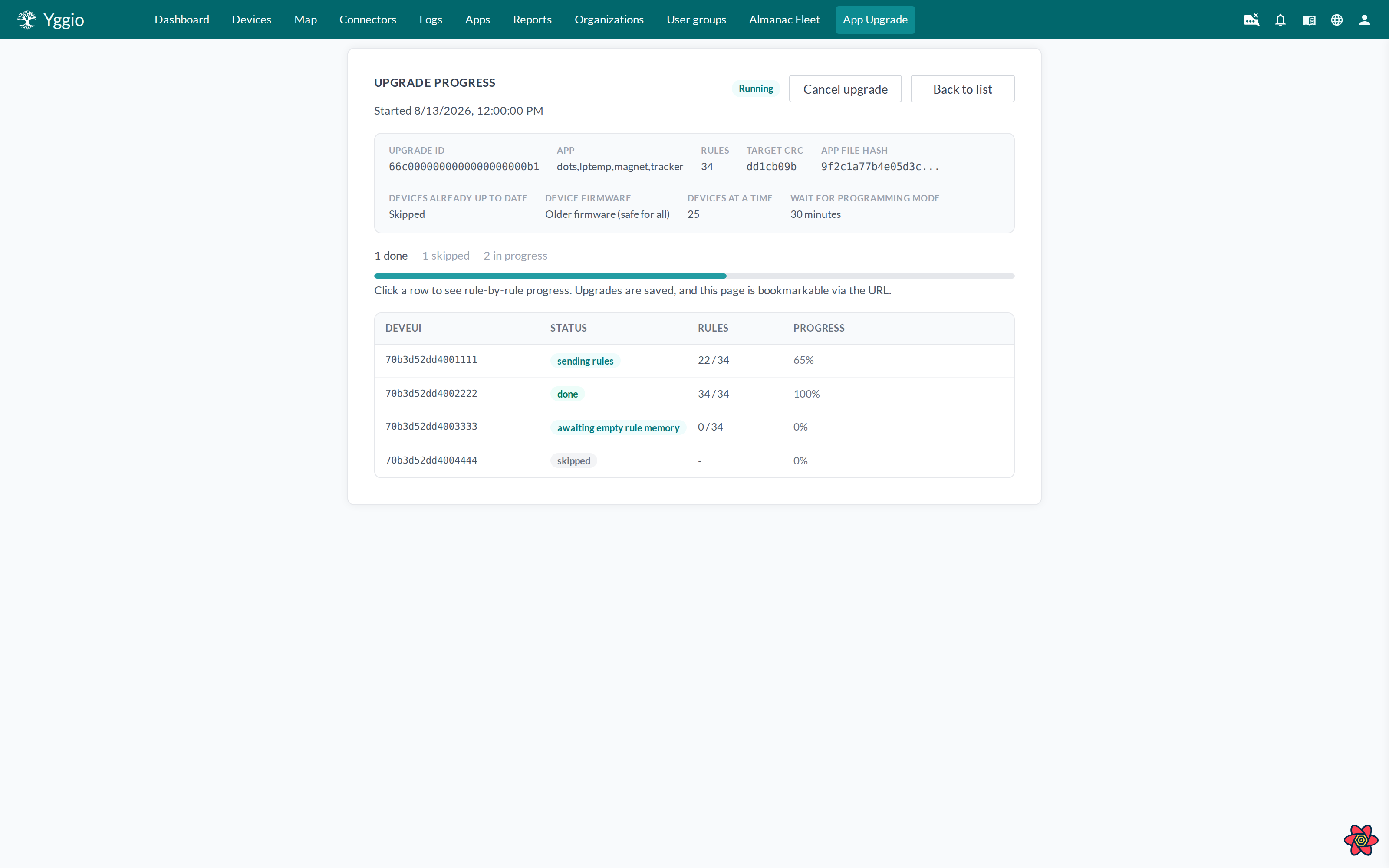
The detail view names the app, its target checksum and the settings the upgrade was started with,
then counts how many devices are done, skipped and in progress. Below that, each device is listed
by its DevEUI with a status and a rule count such as 22 / 34. Click a device row to see
rule-by-rule detail: which rules have been sent, which the device has confirmed, when, and how
many attempts each took.
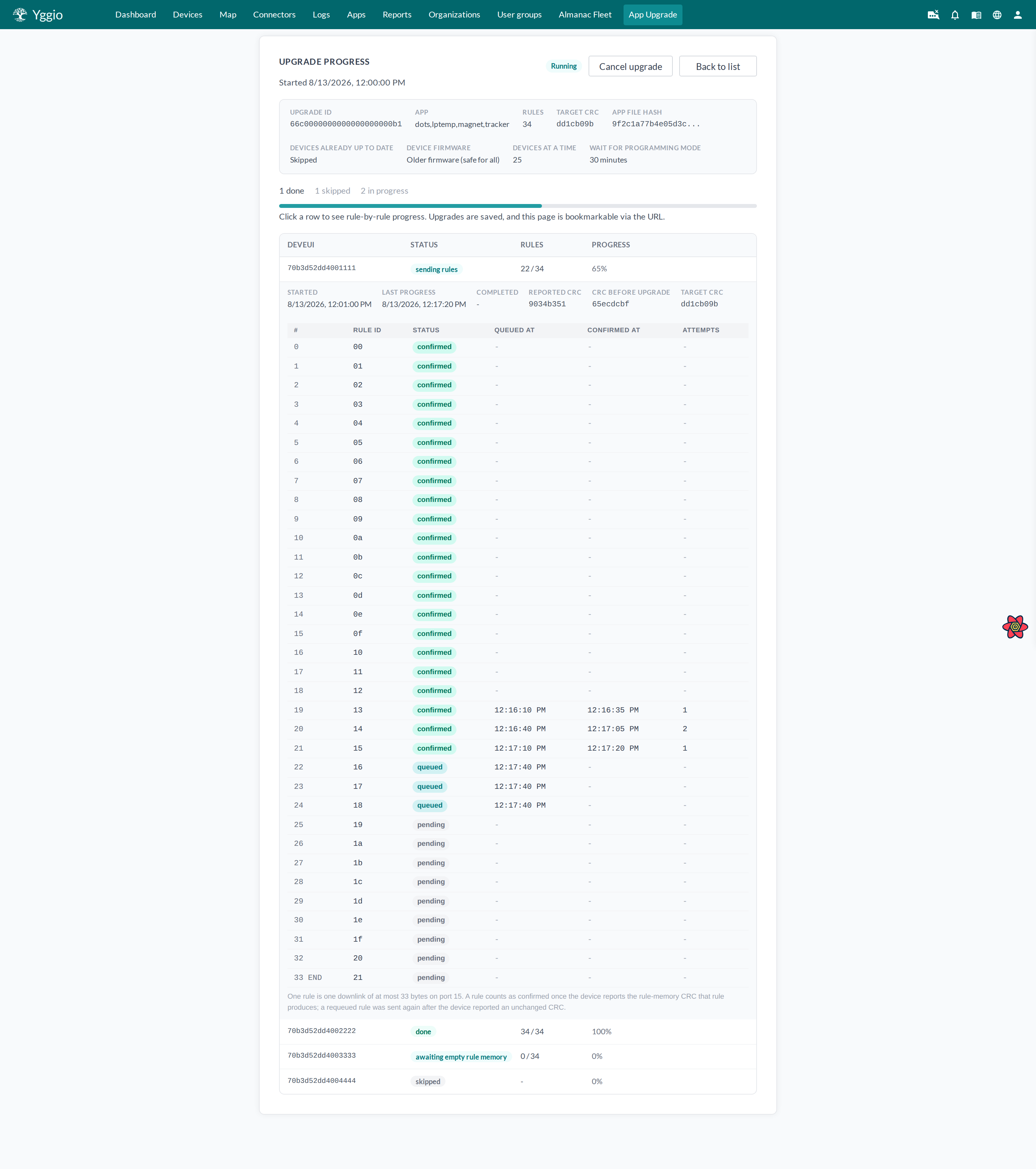
The expanded row also shows the checksum the device last reported, the checksum it ran before the upgrade started, and the target checksum. A rule with more than one attempt is one that was resent after the device reported an unchanged checksum.
A device is marked done on one thing only: the save command left its downlink queue with nothing
left to send. That proves the network sent the save, not that the tracker was listening. Every
done row therefore already shows the target checksum - the device reports it as the last rule
lands, before the save is even queued - so the checksums on the row cannot tell you whether the app
was actually saved.
To confirm an upgrade landed, open the device, go to LoRa control and check that the app it now
reports running is the one you installed. A tracker that was out of coverage when the save was sent
shows done and still reports nothing; start another upgrade for it.
Device statuses:
| Status | Meaning |
|---|---|
pending | Queued, not started yet |
flushing queue, awaiting queue drained | Clearing the device's downlink queue so the transfer starts clean |
entering programming mode | The command has been queued; waiting for the device to pick it up on its next report |
awaiting empty rule memory | Waiting for the device to confirm that its rule memory is empty, which is what proves it is in programming mode |
sending rules | Transferring; the device confirms rules as they arrive |
resending lost rules | A rule did not arrive. Yggio worked out which one from the checksum the device reported and sent it again |
saving and restarting | All rules are in place; the device has been told to save them and restart |
done | The save command left the device's downlink queue with nothing left to send. Confirm the app under LoRa control; the checksums on the row cannot tell you whether it was saved |
skipped | Nothing was sent: the device already runs this app, or it is on a network Yggio cannot upgrade through - the row says which |
failed | Gave up; see the error on the row |
An upgrade is slow by nature. A tracker only confirms rules when it reports, so a device sitting at the same rule count for several minutes is normal and not a fault. A device that is asleep or out of coverage holds up its own transfer without affecting the others.
The upgrade itself is running while devices are being programmed, and completed, failed or
cancelled once every device has settled.
Stopping an upgrade and cleaning up
Press Cancel upgrade on an upgrade's own page to stop it. Yggio stops sending rules and flushes the downlink queue of every device it had started programming. Devices that were still waiting for their turn keep any downlinks other parts of Yggio had queued for them.
Cancelling does not roll a device back. A device that was mid-transfer has an empty rule memory and stops reporting until an upgrade succeeds, exactly as described above; start a new upgrade for it when you are ready. A fresh upgrade always restarts from the first rule.
Removing an upgrade only deletes its progress record. On the App upgrade page, tick the upgrades you no longer need and press Remove selected, or press Remove all to clear the whole list; you can also remove the upgrade you are looking at from its own page. The list keeps every upgrade until you remove it, so it is worth tidying now and then.
Only a finished upgrade can be removed. An upgrade that is still running has no Remove on its page, cannot be ticked in the list, and is left out of Remove all - its record is what Yggio drives the transfer from, so removing it would leave the devices being programmed with nobody sending them the rest of their rules and nobody clearing what is already queued. Cancel it first, then remove it.
Deleting an app removes it from the library only - devices already running it keep running it. An app that an unfinished upgrade still uses cannot be deleted; cancel that upgrade first, and the message names it.
If something goes wrong
| What you see | What it means |
|---|---|
| No App Upgrade in the menu | Access is not enabled on your account, or you have not signed out and back in since it was. Ask your Yggio administrator. |
| "App upgrade is not enabled for your account" | Same as above. |
| The file is rejected when you upload it | The file is not a valid .vso app - see the reasons above. The message names the line that is wrong. Fix the file and upload it again. |
| A device is rejected when you start the upgrade | You have view-only access to it, or it already has an upgrade or an almanac push running. |
| No App upgrade section on a device page | That device is not a Sensative VSM LoRa tracker, or it is not connected through a ChirpStack network server. |
A device is skipped | It already reports this app's checksum, or it is on a network Yggio cannot upgrade through. To reinstall the same app anyway, start again with Reprogram devices that already run this app. |
Every device sits at pending | The upgrade has not begun, or the connector cannot reach the network operator. Contact support if it does not move. |
A device stays at entering programming mode | It has not reported since the command was queued. Trackers only receive downlinks when they report, so allow at least two report intervals before worrying. |
A device is failed | It stopped answering during the transfer, usually poor coverage or an offline device. Its rule memory is empty, so it will not report measurements until an upgrade succeeds - start a new upgrade for it. |
| An app cannot be deleted | An unfinished upgrade still uses it. Cancel that upgrade, then remove it and delete the app. |
| An upgrade cannot be removed | It is still running. Cancel it first; a cancelled upgrade can be removed. |