User groups
A user group is a named set of users that can be given access to something as a unit. Share a device with the group rather than with six people, and the six get it. Add a seventh to the group later and they get it too, without anyone revisiting the device.
It is the same idea as a device group, on the other side of the sharing: device groups collect the things being shared, user groups collect the people being shared with.
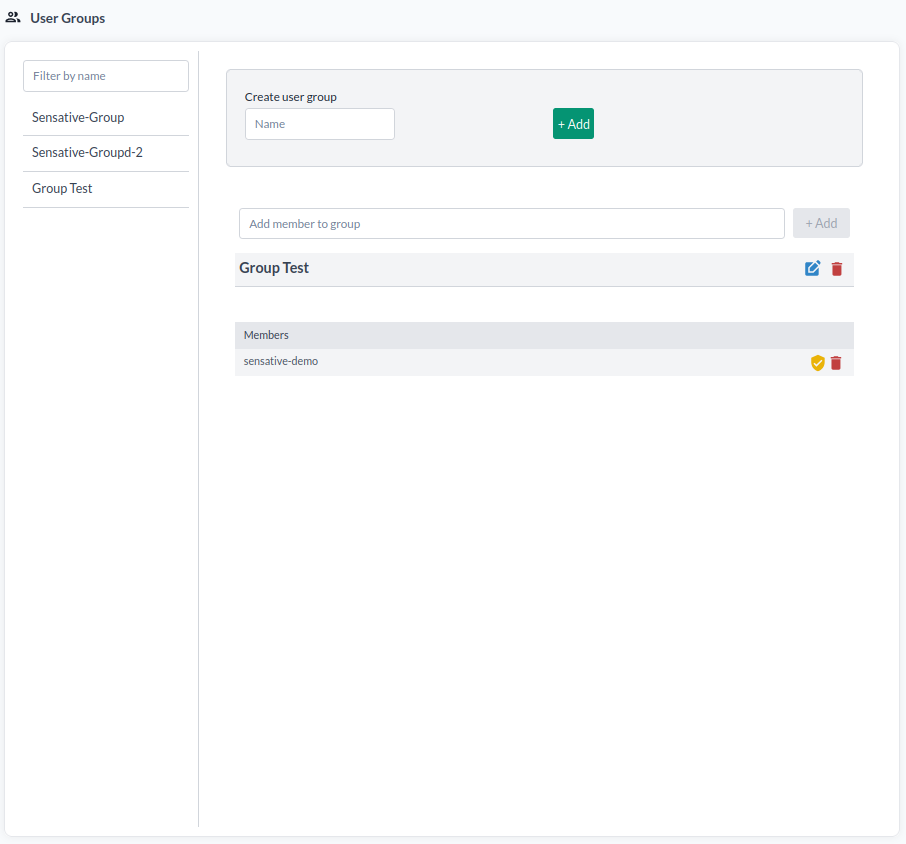
Groups, roles and access rights
Three separate things that are easy to confuse:
| Answers | |
|---|---|
| Roles | What a user is allowed to do at all - read, edit, administer |
| Access rights | Which resources a user can reach, and at what level |
| User groups | Who gets those access rights together |
A user group grants nothing by itself. It is a name you can point an access right at, so the permission is granted once and the membership is what changes.
Create a user group
- Click User groups in the top bar.
- Enter a name in Create user group.
- Press + Add.
Add members
- Select the group in the list on the left. The filter box above the list narrows it by name.
- Enter an existing username in Add member to group. The user has to have an account already - this does not create one.
- Press + Add.
The member list shows everyone in the group, with the owner marked. Members can be removed from the same list.
Deleting a group asks for confirmation. It removes the group, not the user accounts in it, but any access right that was granted to the group goes with it.
Share with a group
Once the group exists, it is a target wherever access rights are given:
- One device, from Access rights on the device.
- Many devices at once, from Select many.
- A dashboard, from Manage dashboard.
For the fuller walkthrough of sharing data this way, see Change access rights with user groups.