Access rights
Access rights decide who can reach a single resource, and at what level. A device, a dashboard, a connector, a rule - each carries its own list of who has access to it.
They are one of three separate mechanisms, and it is worth keeping them apart:
| Answers | |
|---|---|
| Roles | What a user is allowed to do at all - read, edit, administer |
| Access rights | Which resources that user can reach, and at what level |
| User groups | Who gets those access rights together |
A role without access rights reaches nothing. Access rights without the role are not usable either. Both have to line up.
What counts as a resource
Almost everything you create in Yggio is a resource, and every resource carries its own access rights. Devices are only one kind. A dashboard, a connector, an image, a report base and an organization are all resources, each with an owner and a list of who else may reach it.
| Resource | What it is |
|---|---|
device | An IoT node |
deviceGroup | A named group of devices |
dashboard | A dashboard and its widgets |
connector | A connection to a network server or an external system |
geofence | A drawn area on the map |
ruleV2 | A rule in the Rule Engine |
flow | A data flow |
calculation | A calculation definition |
image | An uploaded image, such as a floor plan or a device photo |
reportbase | An uploaded report template |
reportSchedule | A scheduled report run |
app | An installed app |
vsmApp | A .vso application for Sensative VSM sensors |
basicCredentialsSet | A stored username and password pair used by integrations |
oauthClient | A registered client application |
contact | A contact used by notifications |
userGroup | A user group |
organization | An organization |
orgUnit | A single unit in an organization tree |
The levels below mean the same thing whichever of these you are looking at. The same types appear
in the API as resourceType; see Models for the shape of each one.
The levels
| Level | What it allows |
|---|---|
| Admin | Full control of the resource: sharing it, setting its access rights and deleting it. Includes every level below. It cannot transfer ownership |
| Write | Change the resource - its name, its description, its settings. Enables downlink where the device supports it |
| Read | See the resource and its data, and open a channel to subscribe to its updates |
| Peek | The system may read the resource, but it does not appear in the user's device list. Mostly used to give access to a connector |
| Owner | Owns the resource. Always exactly one user - never a user group or an organization. Holds everything admin holds, and is alone in being able to transfer ownership. It is the one level that cannot be granted as an access right: ownership moves by transferring it to another user |
Peek grants access without visibility. Use it when an account needs to add devices through a connector without seeing every device already on it.
Where to find them
The control panel has an access rights panel for six kinds of resource:
| Resource | Where |
|---|---|
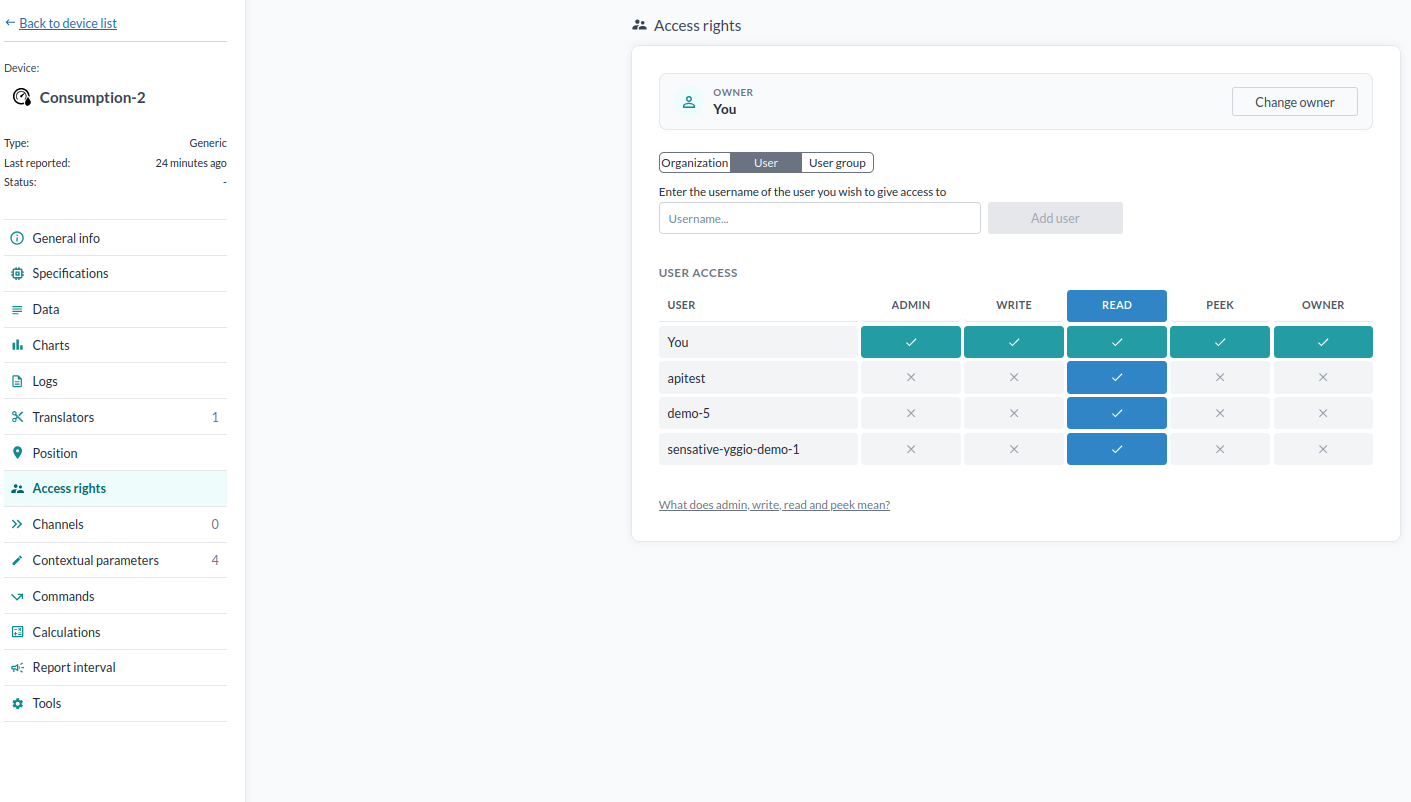
| One device | Access rights in the device sidebar, on Device details |
| Many devices | Select many |
| A device group | The group's row in the device list |
| A dashboard | Manage dashboard, on the dashboard |
| A connector | The connector's own page |
| A geofence | Manage geofences, in the map sidebar |
| A rule | The access button in the Rule Engine toolbar |
Resources with no sharing panel
The other resource types in the table above have access rights, but no panel to edit them in. Images are one example: a floor plan or a device photo can be owned and shared over the API, but there is no field in the control panel for granting a user access to an image.
Two alternatives:
-
Assign the resource to an organization unit, which the Organization Manager can do for images, apps, report bases and basic credentials sets. Everyone with access to that unit then reaches the resource.
-
Grant the right directly over the API. In the Swagger UI, under AccessRights,
POST /access-rights/resourcetakes the resource and the subject:{"resourceType": "image","resourceId": "<the image id>","subjectType": "singleton","subjectId": "<the user id>","scope": ["read"]}subjectTypesays what kind of subject you are granting to, and decides whatsubjectIdmust be:subjectTypeGrants to subjectIdissingletonOne user The user's Keycloak id, a UUID such as 1f8d4c2e-9b73-4a15-8e60-2c7f5a91b3d4groupA user group The group's _id, a 24-character hex string such as507f1f77bcf86cd799439011orgUnitAn organization unit The unit's access-subject ref, organization_<organizationId>_unit_<unitId>_<scope>- not the unit id on its ownsingletonis the control panel's own term for a single user, and is what it sends.useris accepted as an alias for it, so both work.resourceIdis the resource's own_id, a 24-character hex string.DELETE /access-rights/resourcetakes the same values as query parameters and removes the right again.GET /access-rights/resource/{id}lists who currently has access to one resource.Note:
GET /access-rights/subject/{id}is the exception. ItssubjectTypequery parameter accepts onlyuserorgroup, and defaults touser. Passingsingletonthere is rejected.
What you can share
You can view and edit access rights on a resource you own, and on a resource you hold admin on. Admin carries the right to share the resource and to delete it, along with everything the levels below it allow. Ownership is the one thing admin does not carry: transferring it is reserved to the owner, as described under Changing the owner.
With several resources selected, the panel narrows to the ones you can manage and tells you how many of the selection that is - "Showing access rights for owned devices only (3 of 12)". The message says owned, but the count also includes resources you hold admin on rather than own. If you can manage none of them, it says that instead.
You also cannot edit your own access to a resource while logged in as that user.
Granting access
- Open the access rights panel for the resource.
- Choose whether you are granting to an Organization, a User or a User group.
- For a user or a group, type the username or the group name. A name that does not match reports that it cannot be found - check the spelling rather than assuming the account does not exist.
- For an organization, pick the unit to share at. Every member of that unit and of the units above it gets access at the level they hold in their own unit, so there are no levels to tick. Members of the unit's subunits do not get access. The share is made on the owner's behalf: you need to be an organization admin or a manager of the unit, and the owner has to be a member of the organization. A resource can be shared in one place per organization; to move it, unshare it first from the unit's Resources tab in the Organization Manager.
- For a user or a group, tick the levels to grant.
Everyone with access appears in the table below, with a tick against the levels they hold and a cross against the ones they do not.
Granting to a user group rather than to six people means the seventh person is handled by adding them to the group, without anyone reopening the resource.
Changing the owner
Change owner transfers ownership, and only the current owner can do it. Admin is not enough, so the button appears on resources you own and nowhere else. The confirmation says how many of the selected resources you actually own and who the new owner will be, since only those are transferred.
Ownership is exclusive. Transferring it to somebody else does not leave you a copy.
Sharing a dashboard
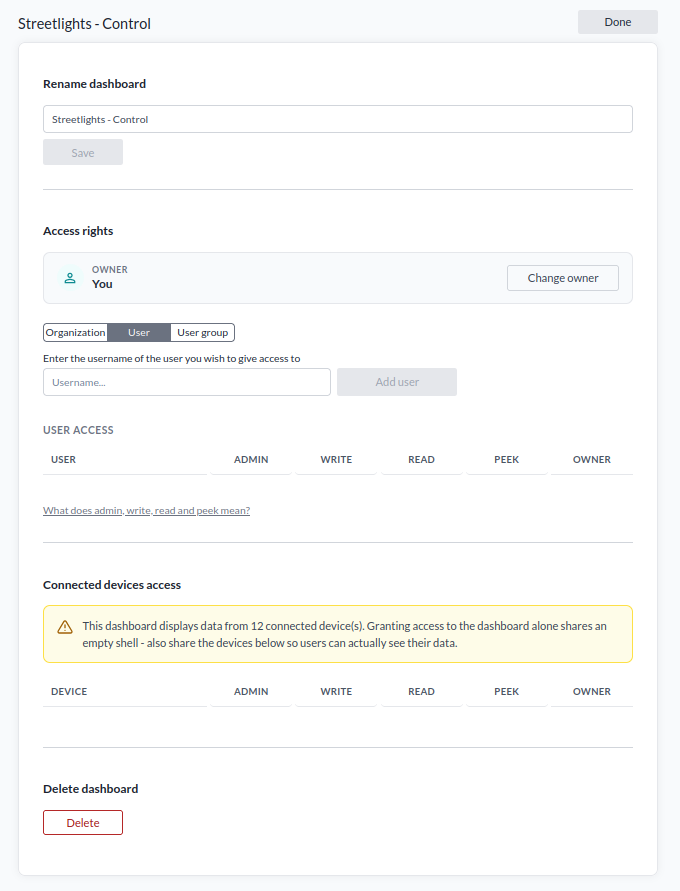
A dashboard is shared from Manage dashboard, which also lists Connected devices access.
Both halves are needed. The dashboard on its own is an empty frame: the widgets are there, but a user without access to the devices behind them sees no data. Share the connected devices below it as well.