Lesson 3.4 MQTT Explorer
MQTT Explorer is a free desktop tool for publishing and subscribing to MQTT topics. It's the quickest way to test the IoT platform's MQTT broker - to send data into the IoT platform (create/update a device) and to watch data the IoT platform publishes out. Several earlier lessons (2.0, 2.3, 2.9) use it; this lesson gathers the key usage in one place.
Before you start
- Install MQTT Explorer.
- A Basic Credential Set (username + password) - create one in Swagger
(
POST /api/basic-credentials-sets); see Lesson 2.3. - A Reserved MQTT Topic of the form
yggio/generic/v2/<your-unique-id>(POSTthe reserved-topic endpoint in Swagger).
Connect to the IoT platform's MQTT broker
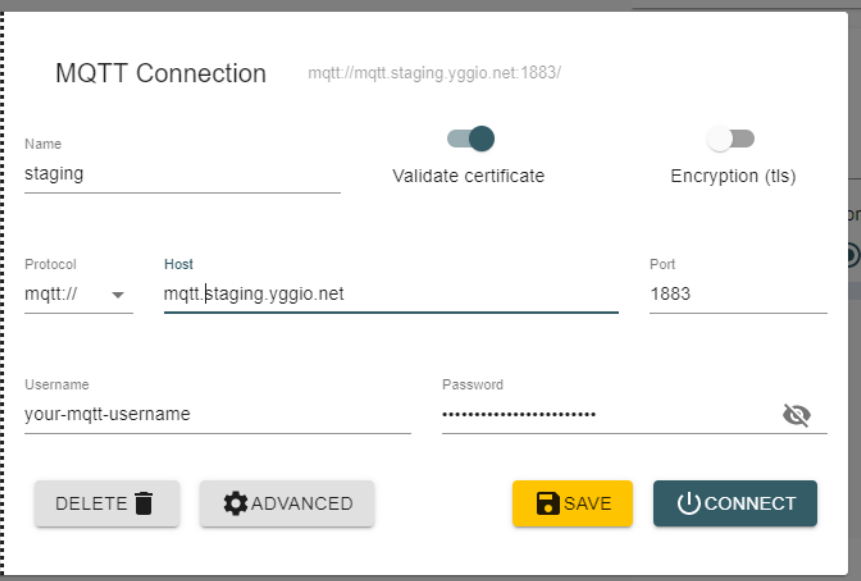
In MQTT Explorer, create a new connection:
- Host:
mqtt.staging.yggio.net - Port:
8883 - Encryption (TLS): on, and Validate certificate: on.
- Username / Password: your Basic Credential Set.
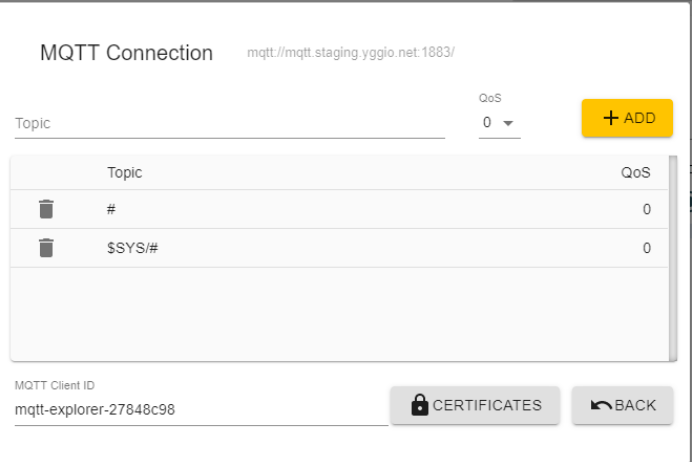
- Fix the default topics (do this every time): open Advanced, delete the
#and$SYS/#entries, and add your own topic instead (your reserved topic, or your user-output topic). The IoT platform does not give access to the broker root, so leaving#/$SYS/#in place makes the subscription fail. - Click Connect.
The most common MQTT Explorer mistake. It ships subscribed to
#and$SYS/#by default, but those need broker-root privileges the IoT platform doesn't grant - so the connection appears to "not work". Always go to Advanced, remove#and$SYS/#, and subscribe to your own topic instead.
Publishing and subscribing must use the same MQTT credentials. To use a different Basic Credential Set, create a separate connection.
Exercise 1 - Publish data into the IoT platform (create a device)
Publishing to a reserved generic topic creates/updates a device automatically.
- In the Publish panel, set the topic to your reserved topic,
yggio/generic/v2/<your-unique-id>. - Set the type to raw / JSON and enter a payload:
{ "temperature": 22, "relativeHumidity": 48 }
- Click Publish.
- In the IoT platform, a device named
MQTT-<your reserved topic>appears within a minute, showingtemperatureandrelativeHumidity.
You don't need to reserve subtopics. If you publish to
yggio/generic/v2/<id>/status,statusbecomes a nested object on the device.
Exercise 2 - Subscribe to data the IoT platform publishes
To watch data the IoT platform sends out over a Channel (see Lesson 2.9):
- Make sure the connection is subscribed to your topic (not
#) - if you skipped the Advanced step when connecting, edit the connection and fix it now. - Use your reserved/output topic, e.g.
yggio/generic/v2/<your reserved topic>(oryggio/output/v2/<your userID>/#for user output - this is scoped to your own user, so it is allowed, unlike the broker-root#). - As the platform publishes, the messages appear live in the topic tree - expand a topic to see the exact JSON and when it arrived.
Troubleshooting - which side is losing the data?
MQTT Explorer is a known-good MQTT client, so it's the fastest way to prove which side of an integration is at fault. Use it differently depending on the direction of the flow: data going into the platform, or data coming out of it.
Inbound - your system publishes, nothing appears in the platform
This is the most common MQTT support call. Subscribe MQTT Explorer to the same
topic your system publishes to (yggio/generic/v2/<id>), with the same Basic
Credential Set, then trigger your system:
- Nothing appears in MQTT Explorer → your system never actually published to the broker. The fault is in your system - wrong topic, wrong credentials, wrong port/TLS, or it simply isn't publishing. The platform is fine.
- It appears in MQTT Explorer, but no device or values show up in the platform → the data reached the broker, so it's a payload problem the platform rejects: invalid JSON, a structure the platform doesn't accept, or an invalid/unrecognised field name. Fix the payload and re-publish.
To confirm the broker → platform path itself is healthy, publish a known-good test
from the Publish panel - { "temperature": 22 } to that topic - and check the
platform device list for the auto-created MQTT-<topic> node. If that works but
your system's messages don't, the difference is in your system's payload.
Outbound - your system subscribes, receives nothing
Subscribe MQTT Explorer to the same output topic your system listens on (e.g.
yggio/output/v2/<userID>/#), with the same credentials:
- The messages appear in MQTT Explorer → the platform is publishing correctly and the broker side is fine. If your system still receives nothing, the fault is in your system - wrong topic or credentials, or it isn't handling what arrives.
- Nothing appears even in MQTT Explorer → the platform isn't publishing on that topic. Check that the Channel / publishing Rule is set up (Lesson 2.9) and that you're subscribed to the right topic.
Either way, MQTT Explorer settles it in under a minute: if it can see the data and your system can't, the fault is in your system, not the platform.
Key usage summary
| Task | Topic | Notes |
|---|---|---|
| Send data into the IoT platform (generic device) | yggio/generic/v2/<id> | JSON body; device is auto-created |
| Watch a Channel's output | your reserved / output topic | requires a publishing Rule (Lesson 2.9) |
| Watch all user output | yggio/output/v2/<userID>/# |
What you learned
- How to connect MQTT Explorer to the IoT platform's MQTT broker (
mqtt.staging.yggio.net:8883, TLS, Basic Credential Set). - How to publish to a
yggio/generic/v2/...topic to create/update a device. - How to subscribe to see exactly what the IoT platform publishes.
- How to use MQTT Explorer as a known-good client to pin an MQTT fault to the right side - your system or the platform - for both inbound and outbound data.
Where next
- Lesson 3.3 Node-RED - automate publishing/subscribing.
- Lesson 2.9 External Data Sharing - MQTT channels and connectors.