Command Button
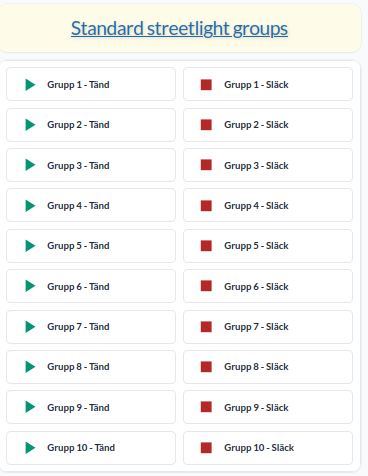
Command Button-widgeten triggar regler som har en knapptrigger. Varje knapp kan konfigureras med egen ikon, färg och etikett.
Konfiguration
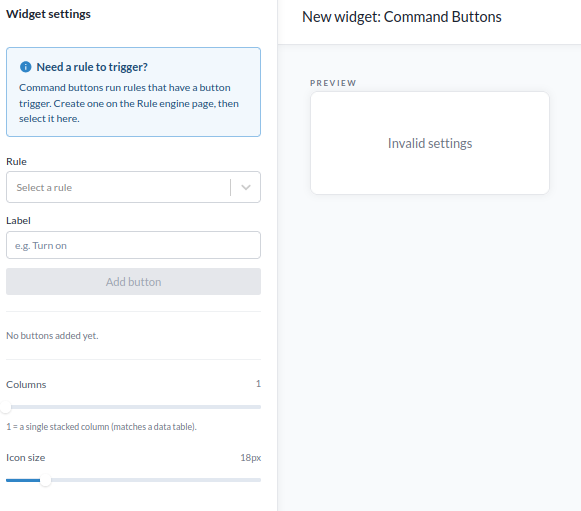
För att använda denna widget behöver du redan ha skapat en regel med en knapptrigger och sparat den.
Rule väljer en regel du redan har skapat i regelmotorn. Endast regler med knapptriggers listas.
Trigger visas när en regel har valts. Välj knapptriggern från den regeln.
Label anger texten som visas på knappen.
Tryck på Add button för att lägga till den i widgeten.
Upprepa för alla knappar du vill skapa.
Varje tillagd knapp listas med följande kontroller:
Arrows ändrar knappens ordning.
Pen redigerar knappen, vilket gör det möjligt att ändra etikett, ikon, färg, om endast ikonen ska visas, och textens position.
Bin tar bort knappen.
Columns anger antalet kolumner knapparna ordnas i. Värdet 1 visar en enda staplad kolumn, likt en data table.
Icon size anger storleken på knapparnas ikoner, i pixlar.
Åtkomst
Knapparna är utgråade när din roll inte får ändra enheter, som med visningsrollerna, och en notis under dem förklarar varför. Be en administratör om en roll som får ändra enheter.