WhatsApp Connector
Den här guiden förklarar hur du skapar och konfigurerar en WhatsApp-connector i Yggio. Sex leverantörer stöds: MessageBird, Plivo, Sinch, TextMagic, Twilio och Vonage.
Översikt
- WhatsApp-connectors gör det möjligt att skicka WhatsApp-meddelanden via regelåtgärder.
- Du måste ha ett konto hos en av de leverantörer som stöds, med WhatsApp-meddelanden aktiverat.
- Obligatoriska fält valideras i gränssnittet.
Krav för Twilio-installation
För att använda WhatsApp med Twilio måste du genomföra följande steg:
- Registrera ett Twilio-konto och verifiera din e-postadress och ditt telefonnummer: https://www.twilio.com/try-twilio
- Begär WhatsApp-åtkomst i Twilio Console (WhatsApp > Senders > Request Access).
- Registrera ditt företag och ditt WhatsApp-aktiverade telefonnummer hos Twilio.
- Vänta på Twilios godkännande och numreraktivering (denna process kan ta flera dagar).
- Sätt upp en WhatsApp-avsändare (ditt godkända nummer) i Twilio Console.
- Hämta ditt Account SID och Auth Token från Twilio Console-instrumentpanelen.
- Använd det godkända avsändarnumret som fältet "From" i din connector-konfiguration.
- (Valfritt för testning) Använd Twilios WhatsApp Sandbox för att skicka testmeddelanden innan ditt nummer är fullt godkänt.
För detaljerade instruktioner, se Twilio WhatsApp Quickstart.
Skapa en WhatsApp-connector
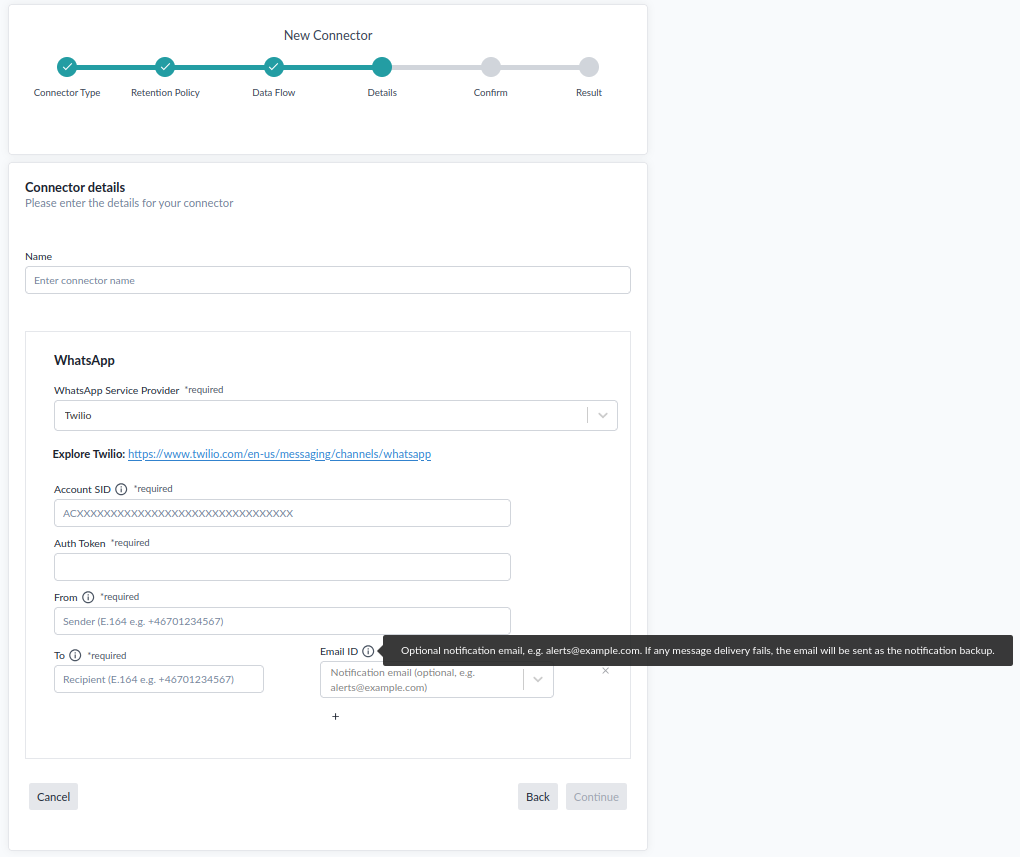
- Gå till avsnittet Connectors i Control Panel (
/control-panel-v2/connectors). - Klicka på Ny connector och välj WhatsApp som typ.
- Välj din WhatsApp-tjänsteleverantör. Fälten för inloggningsuppgifter nedan ändras efter den.
- Fyll i de fält som krävs för den leverantören, plus avsändarnumret From.
- Spara connectorn.
Fältdetaljer
Twilio
| Fält | Beskrivning | Obligatoriskt | Validering |
|---|---|---|---|
| Account SID | Twilio Account SID (börjar med AC) | Ja | Måste börja med AC |
| Auth Token | Twilio Auth Token (hemlig) | Ja | Ej tomt |
| From | Avsändarnummer (E.164-format) | Ja | Måste vara giltigt E.164 |
MessageBird
| Fält | Beskrivning | Obligatoriskt | Validering |
|---|---|---|---|
| Access Key | API-åtkomstnyckel | Ja | Ej tomt |
Plivo
| Fält | Beskrivning | Obligatoriskt | Validering |
|---|---|---|---|
| Auth ID | Plivo auth-id | Ja | Ej tomt |
| Auth Token | Plivo auth-token | Ja | Ej tomt |
| Domain | Din Plivo-domän | Nej | Ej tomt om angivet |
Sinch
| Fält | Beskrivning | Obligatoriskt | Validering |
|---|---|---|---|
| API Token | Sinch API-token | Ja | Ej tomt |
| Service Plan ID | Sinch service plan-id | Ja | Ej tomt |
TextMagic
| Fält | Beskrivning | Obligatoriskt | Validering |
|---|---|---|---|
| Username | TextMagic-användarnamn | Ja | Ej tomt |
| API Key | TextMagic API-nyckel | Ja | Ej tomt |
Vonage
| Fält | Beskrivning | Obligatoriskt | Validering |
|---|---|---|---|
| API Key | Vonage API-nyckel | Ja | Ej tomt |
| API Secret | Vonage API-hemlighet | Ja | Ej tomt |
| Brand Name | Avsändaridentitet som visas för mottagaren | Ja | Ej tomt |
Exempel
- Account SID:
ACXXXXXXXXXXXXXXXXXXXXXXXXXXXXXXXX - Auth Token:
your_auth_token - From:
+46700000000
Observera
- Sex leverantörer stöds som WhatsApp-leverantör.
- Alla nummer måste vara i E.164-format (t.ex.
+1234567890). - Du måste ha ett giltigt konto hos din valda leverantör med WhatsApp aktiverat.
Skärmbilder
Meddelandestatistik
På den sparade connector-sidan visas en statistikpanel med:
- Total Sent: Antal meddelanden som skickats framgångsrikt.
- Total Fails: Antal misslyckade sändningsförsök.
- Sent This Month: Antal meddelanden skickade under innevarande månad.
- Success Rate: Andel lyckade leveranser.
- Attempts: Totalt antal sändningsförsök (lyckade + misslyckade).
- Last Sent: Tidsstämpel för den senast lyckade sändningen.
- Last Failed: Tidsstämpel för den senast misslyckade sändningen.
- Last Error: Det senaste felmeddelandet eller varningen, om något, med tidsstämpel.
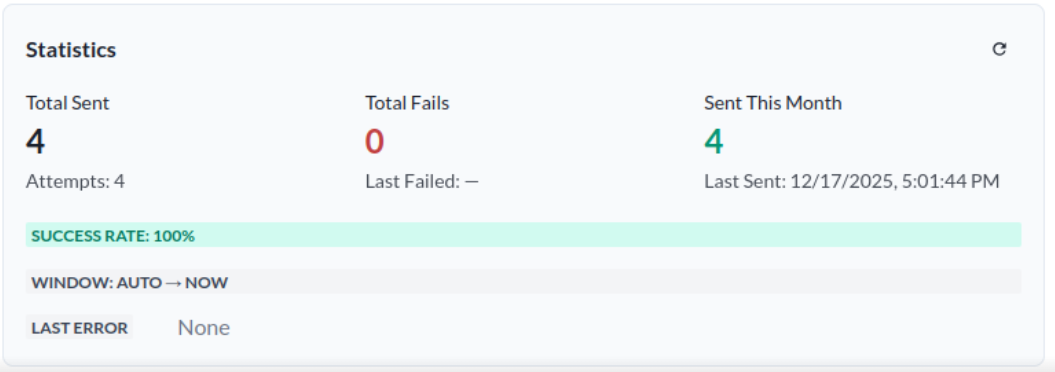
Denna statistik hjälper dig att övervaka connectorns funktion och prestanda.
Felloggning
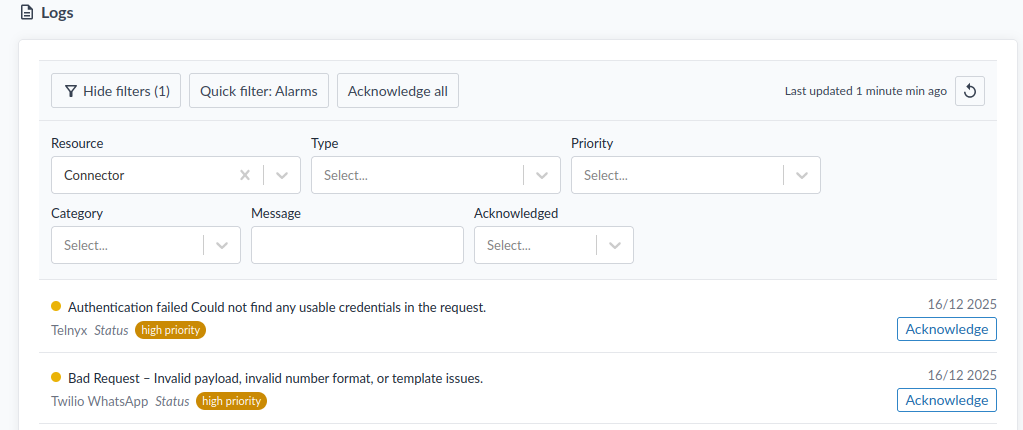
Om connectorn misslyckas med att skicka ett WhatsApp-meddelande visas en fellogg i Logs under Resource → Connector. Du kan granska dessa loggar för att diagnostisera och lösa problem med connectorns konfiguration eller ditt Twilio-konto.