Lektion 3.7 Utveckling av översättare
En översättare avkodar en enhets råpayload till IoT-plattformens platta,
kanoniska datamodell - och gör om t.ex. TempC_SHT eller en hex-blob till
temperature, °C. I tidigare lektioner använde du översättare; i denna
bygger, testar och laddar du upp din egen.
Den fullständiga referensen (datamodellregler, kompletta mallar, verktyg) är utvecklarguiden Utveckla översättare och Översättar-API. Denna lektion går igenom det praktiskt.
Innan du börjar
- Åtkomst till din servers Swagger-gränssnitt
(
https://staging.yggio.net/swagger) för att ladda upp översättaren och koppla den till en enhet. - Node.js installerat om du vill köra det lokala testverktyget.
- Grundläggande JavaScript.
Övning 1 - Varför datamodellen är viktig
Öppna datamodellens fälttabell
och notera hur samma mätvärde alltid har samma fältnamn, enhet och
kvantitet - temperature (°C), relativeHumidity (%), batteryVoltage
(V). Det är detta som gör att ett larm, en dashboard eller en
Grafana-panel fungerar med alla enheter. Guldregeln: mappa enhetens råa
namn till dessa kanoniska namn - uppfinn aldrig en ny stavning.
Övning 2 - Bygg och testa en översättare
- Kopiera en mall från
Utveckla översättare -
börja med Mall 1 (omslut en tillverkares referensdekoder) eller
Mall 2 (avkoda en byte-specifikation själv). Många
leverantörsdekodrar läser payloaden som en Node
Buffer(buf.readInt16BE(...)) - guiden innehåller enBuffer-variant för det vanliga fallet. - I
translate-funktionen, mappa dekoderns råa utmatning till kanoniska fält som sista steg, och konvertera enheter (t.ex.mV → V,hPa → Pa). - Testa den lokalt med testverktyget (
translator-harness.js): lägg din funktion itranslate.js, lägg till en verklig payload och förväntad utmatning i arrayenCASES, och kör sedannpm install lodash && node translator-harness.js. Grönt = sandlådan kommer köra identisk logik.
Övning 3 - Skriv en tydlig beskrivning
description är det en användare läser i IoT-plattformen för att
avgöra om din översättare passar - skriv den väl:
- Börja med en mening i klarspråk: vad enheten är (hårdvara), eller vad den beräknar (kedjad / analytics).
- Lägg till en lista
### Decoded output-`fieldName` (unit) - meaningför varje utsänt fält. - För analytics- / kedjade översättare, förklara även logiken,
indatan den läser och användningsfallet. Deras värde är inte
uppenbart från en fältlista, så en vag beskrivning gör att
översättaren används fel. Exempel: "Turns a cumulative energy meter
into consumption per day/week/month, resetting at local midnight;
pair with
set-alarm-energy-consumptionto catch overspend."
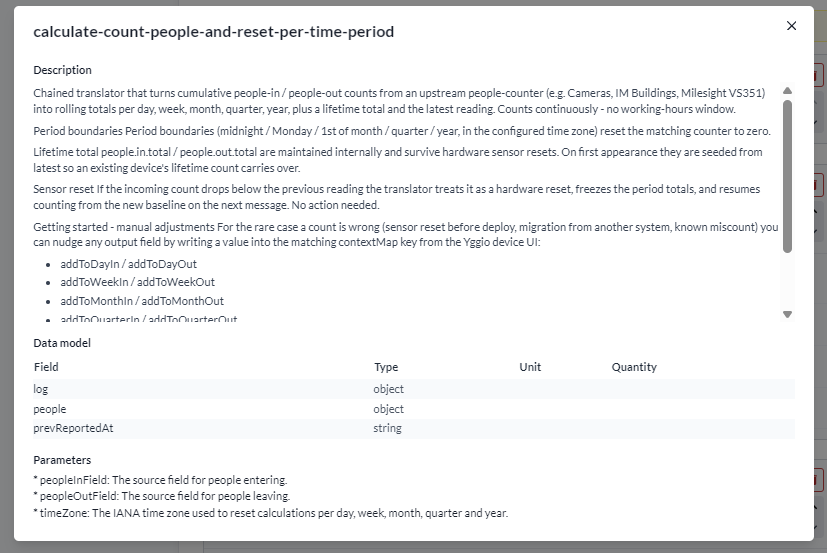
Så här renderas en översättares beskrivning, datamodell och parametrar när den har lagts till på en enhet:
Övning 4 - Paketera och ladda upp
-
Fyll i
manifest.json(namn, version,apiVersion, beskrivning,match,spec, valfriaparameters) - deklarera varje utfält ispecmed sin{type, unit, quantity}. -
Kör
node translator-build.jsför att produceratranslator.json. -
POSTden till översättar-endpointen i Swagger, koppla den sedan till en enhet via enhetenstranslatorPreferences. Alternativt, koppla den direkt från enhetens sektion Translators: klicka på+ Add translator, filtrera på namn och klicka på (i)-knappen bredvid ett resultat för att förhandsgranska dess beskrivning innan du lägger till den.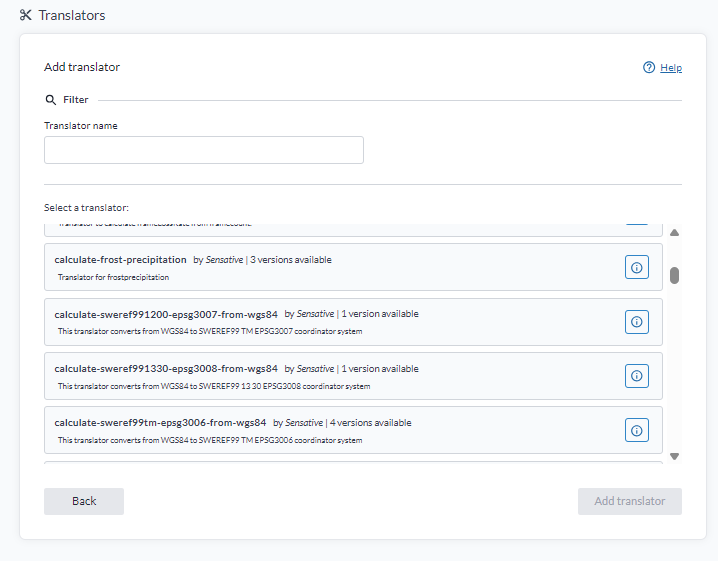
-
Skicka (eller simulera) en payload och bekräfta att de avkodade, kanoniska fälten visas på enheten.
Övning 5 - Felsök
Om ingenting visas efter en uppdatering:
- Öppna enhetens loggar, filtrera Type =
Debug, Category =System- en kraschande översättare loggar sitt fel där (sparas i 6 timmar). Kopiera tillbaka den felande indatan i testverktyget för att återskapa felet. - Ingen logg alls? Översättaren körde antingen felfritt eller utlöstes aldrig - kontrollera enhetens kolumn Last reported; om den uppdaterades körde översättaren.
- Vanligaste orsaken: ett utfält som inte finns i
spec, eller ett icke-kanoniskt namn.
Vad du lärde dig
- Varför översättare måste sända ut kanoniska fältnamn, enheter och kvantiteter.
- Hur man bygger, testar lokalt utan någon av IoT-plattformens infrastruktur, paketerar och laddar upp en översättare.
- Hur man hittar och åtgärdar en felande översättare via enhetens loggar.
Vart härnäst
- Utveckla översättare -
mallar för
calculate,set-alarmoch analytics-översättare, samt den fullständiga checklistan. - Relaterat: Node-RED - ett bra SDK för att bygga och simulera översättare. Detta är den sista lektionen i modulen.