Lektion 2.1 Regelmotorn
Regelmotorn utlöser åtgärder, vilket kan vara att skicka ett e-postmeddelande eller SMS, göra en HTTP-förfrågan, eller publicera ett meddelande till ett MQTT-topic. Triggers, villkor och åtgärder är noder som du drar till en canvas och kopplar samman, vilket gör den användbar för att bygga och visualisera tröskelvärdes- och larmregler.
Observera: Detta är den nya, visuella regelmotorn. Vissa funktioner från den äldre regelmotorn har ännu inte lagts till, se Lektion 2.1 Regelmotorn (äldre version).
I denna lektion går vi igenom följande ämnen:
- Vem regelmotorn kan skicka e-post till.
- Hur man lägger till en trigger och ett villkor i en regel.
- Hur man kopplar samman noder på canvasen.
- Hur man lägger till en åtgärd så att en komplett regel kan köras från början till slut.
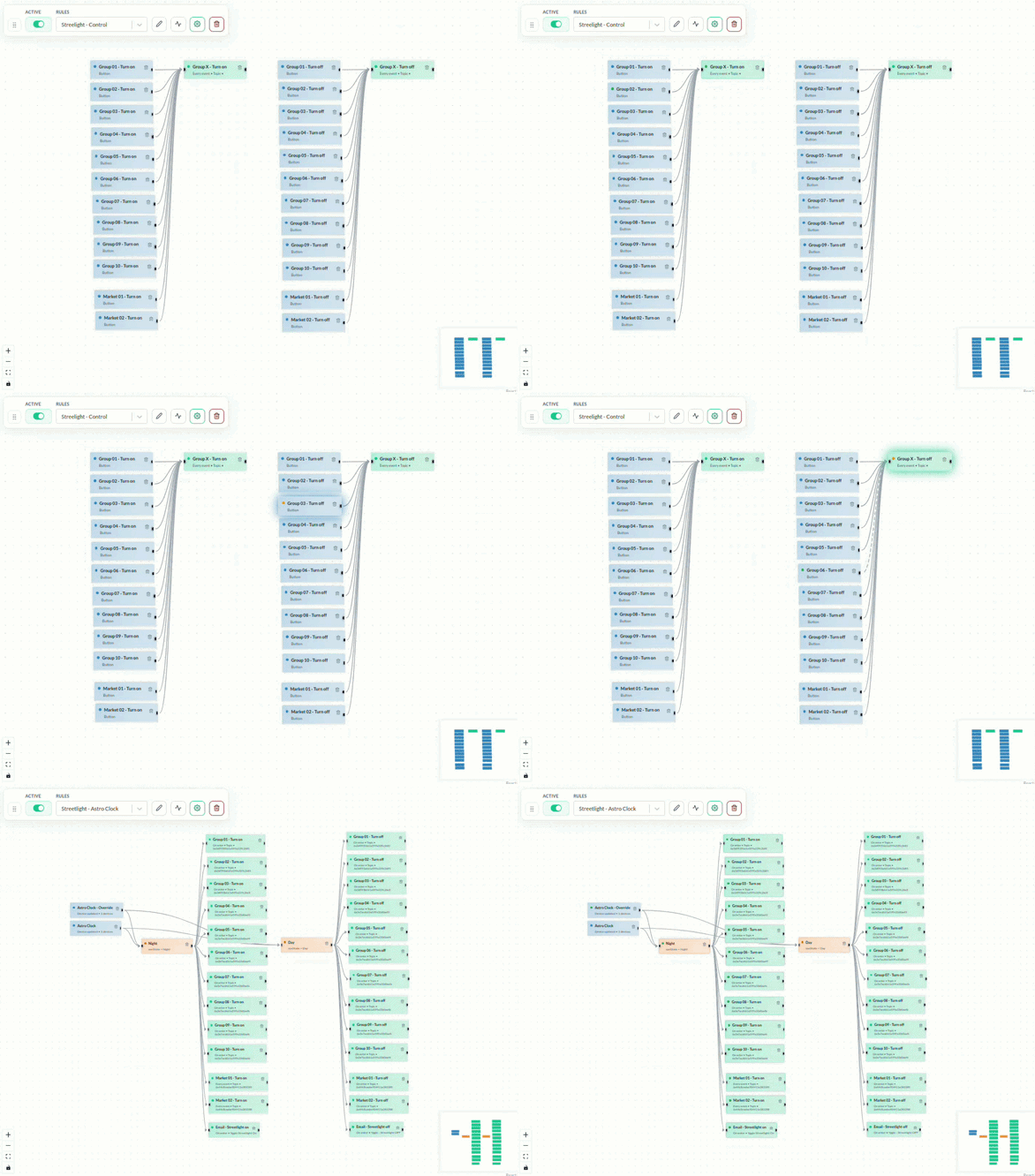
Animationen ovan visar en verklig (mer avancerad) uppsättning av regelmotorn: triggers till vänster, villkor i mitten och åtgärder till höger, alla kopplade med linjer, med uppdateringar i realtid när data flödar genom regeln. Din första regel kommer att se ut som en mycket mindre version av detta.
Skapa och konfigurera en regel
Börja med att kontrollera vem som kan få e-post
Regelmotorn erbjuder medlemmarna i din organisation som mottagare, och bara de som har en e-postadress registrerad. Det finns ingen separat kontaktlista att fylla i.
- Klicka på Organizations i toppraden och öppna din organisation.
- Kontrollera att personen du vill mejla är medlem och har en e-postadress.
- Lägg till dem som medlem först om de inte är det - se Organisationshanteraren.
Klicka sedan på Rules i toppraden för att öppna regelmotorn.
Exempel
Börja med att använda mallen Blank, bygg sedan regeln av dessa tre noder.
1. Lägg till en trigger
Lägg till en Device updated-trigger och välj den enhet du vill övervaka, till exempel en temperatursensor. Denna trigger utlöses varje gång den enheten rapporterar ett nytt värde.
2. Lägg till ett villkor
Lägg till ett Value threshold-villkor. Enhetsfältet är ett värdenamn, som temperature. Välj sedan en operator och ett värde av matchande typ, till exempel temperature, >, 30.
| Operator | Stöd | |
|---|---|---|
| = | Lika med | Text, nummer, boolean, null |
| != | Inte lika med | Text, nummer, boolean, null |
| > | Större än | Text, nummer |
| >= | Större än eller lika med | Text, nummer |
| < | Mindre än | Text, nummer |
| <= | Mindre än eller lika med | Text, nummer |
| Contains | Text, lista | |
| Does not contain | Text, lista |
3. Lägg till en åtgärd
Lägg till en Send email-åtgärd. Detta kräver en e-postconnector; välj en av organisationsmedlemmarna i mottagarlistan, eller ange en e-postadress direkt, och ge e-postmeddelandet en rubrik.
4. Koppla samman noderna
Håll muspekaren över den svarta punkten på trigger-noden tills markören blir ett hårkors, tryck ner och håll in vänster musknapp, dra sedan till den svarta punkten på villkorsnoden och släpp. Upprepa för att koppla villkoret till åtgärden. Flödet körs från vänster till höger: trigger → villkor → åtgärd.
5. Spara regeln
Tryck på Save i det övre högra hörnet. Din regel är nu aktiv: varje gång den valda enheten rapporterar en temperatur över 30 får du ett e-postmeddelande.
Alternativa triggers
Istället för Device updated kan du använda:
- Missing expected report - meddelar dig när en enhet slutar rapportera. Innan du använder den, ställ in ett förväntat rapportintervall på enheten: gå till Devices → din enhet → Report interval. Utan ett inställt rapportintervall har denna trigger inget att jämföra med och kommer aldrig att utlösas.
- Button - utlöses när en ansluten knapp trycks in. Lägg till en Command Button-widget på en dashboard och välj denna regels knapp-trigger för att aktivera den.
Visa regelns historik
Varje regel har en logg över sina tidigare körningar, vilket är användbart för att bekräfta att din regel faktiskt kördes som förväntat, och för att felsöka när den inte gör det. Prova nu:
- Tryck på pulsikonen i regelns verktygsfält, bredvid ikonerna för redigering (penna) och inställningar (kugghjul).

- Historikloggen öppnas och visar varje körnings status, tidsstämpel, körnings-ID, utvärderade villkor och resultat.
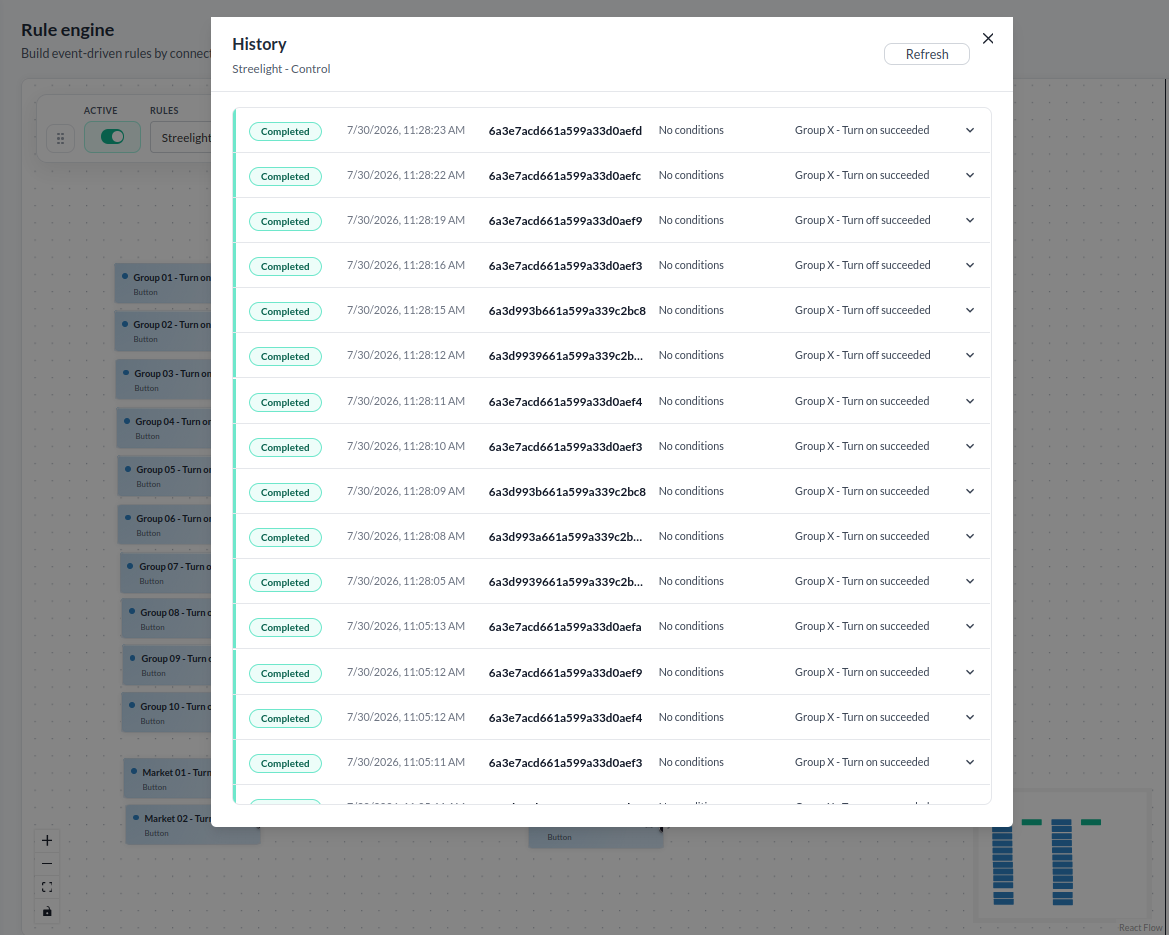
- Tryck på chevronen på en post för att expandera den och se fler detaljer.
- Tryck på Refresh för att se de senaste körningarna.
För mer information, se Regelmotorn.