Rule Engine
The rule engine turns an event into an action. A rule is a graph you draw on a canvas: it starts at a trigger, passes through any conditions and flow control you put in its way, and ends at one or more actions.
When a matching event arrives, Yggio walks the graph from the trigger and runs every action it reaches. Nothing else in the platform decides what happens - the wiring does.
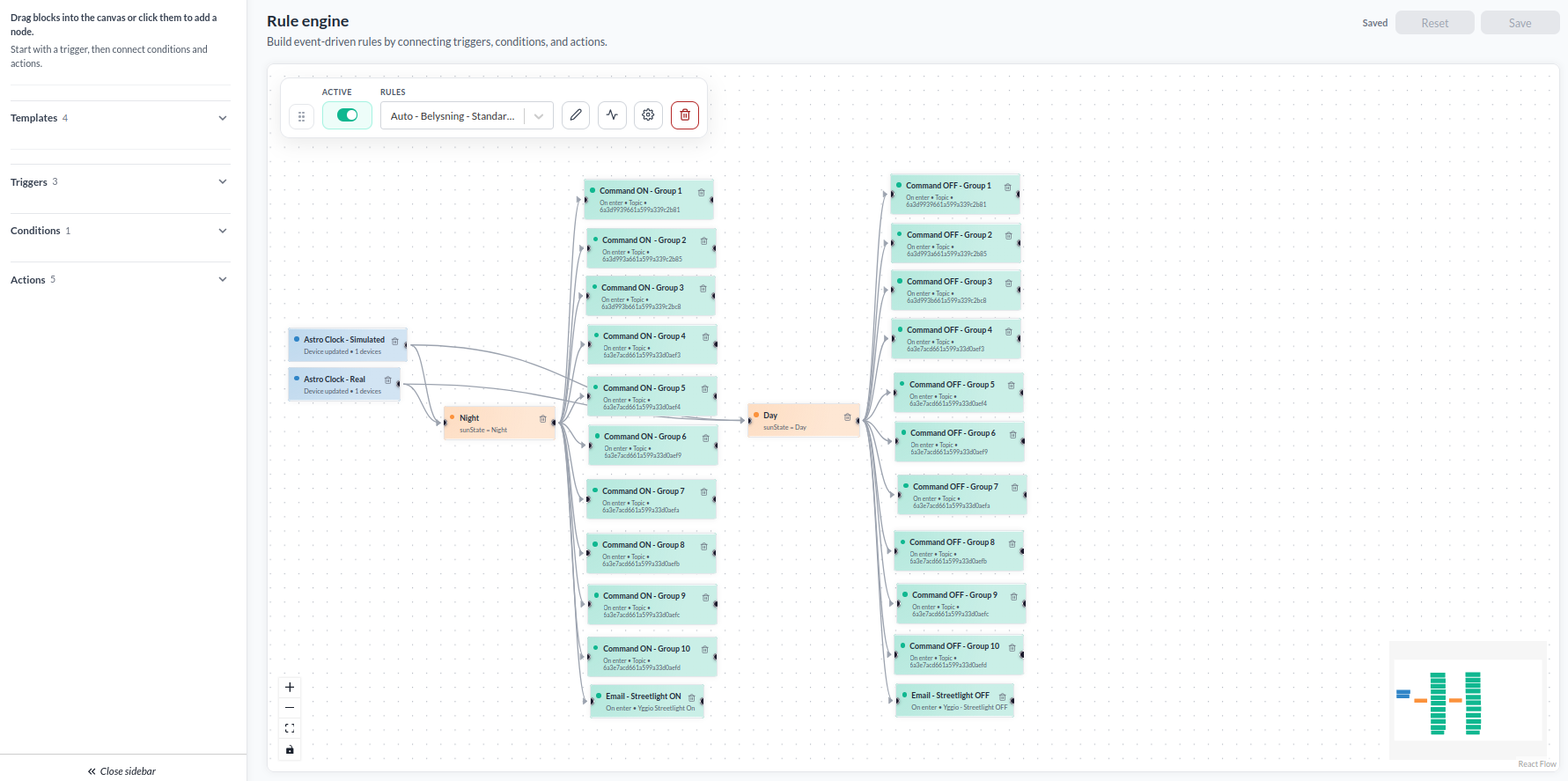
Above, a working street lighting rule. Two triggers report the sun state, a Night condition fans out to a command for each of ten lighting groups, and a Day condition fans out to the matching off commands. One rule replaces a timetable somebody would otherwise maintain by hand.
The blocks
The palette on the left is grouped into four kinds. Each kind has its own page.
| Kind | What it does | Page |
|---|---|---|
| Trigger | Decides which events start the rule | Triggers |
| Condition | Tests the event and splits the flow into a true and a false branch | Conditions |
| Flow control | Governs how execution moves on - waiting, for now | Flow control |
| Action | Does something: a message, a downlink, a log entry | Actions |
Message bodies, topics and payloads can carry variables that resolve from the event when the rule runs, so one rule serves a whole fleet.
Open the editor
Rules is on the top bar. The page opens the canvas with the rule picker above it.
The rule engine is available on every Yggio account. The menu item is hidden from the Viewer Basic and Viewer Standard roles, whose access is limited to the dashboard, device list and map, and from custom roles without rule access.
Create a rule
- Pick a starting point - Blank, or one of the templates.
- Drag blocks from the palette onto the canvas, or click a block to drop it in.
- Connect them: drag from a block's handle to the next block.
- Select a block to open its settings on the right, and fill them in.
- Give the rule a name.
- Press Save.
The smallest valid rule is one trigger wired straight to one action.
A rule can have several triggers, and it runs whenever any of them fires. Each trigger has to be connected to something.
Connect the blocks
A condition has two outputs, a true branch and a false branch. Drag from the one you want, and the blocks you connect to it run only when the test comes out that way.
Everything else has one output and may fan out to as many blocks as you like - the ten command blocks in the picture above all hang off the same condition branch.
A rule is a one-way graph. You cannot wire a block back to something upstream of it; the editor refuses a loop.
What the editor checks
The canvas highlights a block it is not happy with. Save refuses, names every block that is wrong, and selects and centres the first one, so you do not have to hunt for a block that scrolled out of view; double-click it to open its settings. If the server rejects a save the editor could not catch, the message names the block rather than its position in the rule.
| Message | What it means |
|---|---|
| Rule name is required | The rule has no name |
| At least one trigger is required | Nothing starts the rule |
| Connect this trigger to a block | A trigger has no outgoing connection |
| Complete the condition | A condition is missing an operand or an operator |
| Each condition must have at least one true branch | A condition's true output is not connected |
| Each condition can have at most one false branch | Two blocks are wired to the same false output |
| On-enter actions must be triggered by a condition's true branch | An execution policy does not match the wiring |
| On-exit actions must be triggered by a condition's false branch | The same, on the other branch |
Active and inactive
The Active switch on the toolbar decides whether the rule runs. An inactive rule is kept exactly as it is and never fires, which is how you park an automation without deleting it.
The toolbar
Above the canvas sit the Active switch, the rule picker, and buttons to rename the rule, open its run history, open the settings panel and delete the rule. Copy and paste appear when blocks are selected, so a configured block can be duplicated rather than rebuilt.
The rule picker lists active rules first, then the inactive ones, each group in alphabetical order.
Type in it to narrow the list by name; inactive rules are marked (Inactive), so typing inactive
narrows it to those.
Run a rule by hand
The trigger button runs the rule once against the current event data, without waiting for a real event. Save your changes first - it runs the saved rule, not the draft on screen.
It is the fastest way to prove a rule end to end: run it, then open the history and read what happened.
Templates
A template drops a finished shape on the canvas that you complete with your own devices, connectors and values. One marked Needs setup has blanks left in it on purpose.
| Template | Starting point |
|---|---|
| Blank | An empty canvas |
| Value alert | A value check feeding an HTTP request action |
| Missing report | A missing report trigger feeding a Send email action |
| Device update | A value check feeding an MQTT action you can point at another device |
| Streetlight schedule | Sunrise and sunset triggers feeding a relay downlink that resends until the relay reports back |
Picking a template replaces whatever is on the canvas, and the editor warns you before it does.
Streetlight schedule
It switches a streetlight relay at sunrise and sunset, and keeps re-sending the downlink until the relay reports that it has changed. That covers the awkward part of lighting control: a LoRaWAN downlink does not always arrive first time, and a light that missed its command stays wrong until somebody notices.
The template lays out two branches, each with three blocks:
| Branch | Sun event | Downlink | The check waits for |
|---|---|---|---|
| Day | Sunrise | Switch the relay off | The relay reporting false |
| Night | Sunset | Switch the relay on | The relay reporting true |
Each branch is wired the way the redundancy check needs: the sun event goes to the downlink and to the redundancy check, and the check points back at the same downlink. The light therefore switches immediately, and the check re-sends only if the relay has not confirmed by the time the interval passes.
It is a working example of the pattern described under how to wire it, so it is worth opening even if streetlights are not your use case.
What you fill in: the device, the connector and the downlink payloads for on and off, plus the latitude and longitude on each sun event trigger.
Run history
Every run is recorded: which conditions matched, which actions ran, and what the event carried. See Run history.
When the most recent run failed, the history button on the toolbar turns red and its tooltip gives the reason, so a rule that saves cleanly but fails every time it fires is visible without opening the history.
Who can see a rule
A rule is a resource like any other, so it is shared through access rights. Read access lets somebody open the rule, and the higher levels let them change or administer it. Save the rule before sharing it - there is nothing to share until it exists.
The legacy rule engine
The engine described here is the current one, introduced in Yggio 3.40. The older IFTTT-style engine is still available and documented at Rule Engine Legacy. A few of its features have no equivalent here yet, so check that page before moving an automation across.